ACCEPTING INVITATION FROM "MS TEAMS CHANNEL/TEAM"
Important Note: In order to access a specific “Teams/Channel”, you need to request for the permission to invite you as “Guest/Member” of a particular tenant/groups.
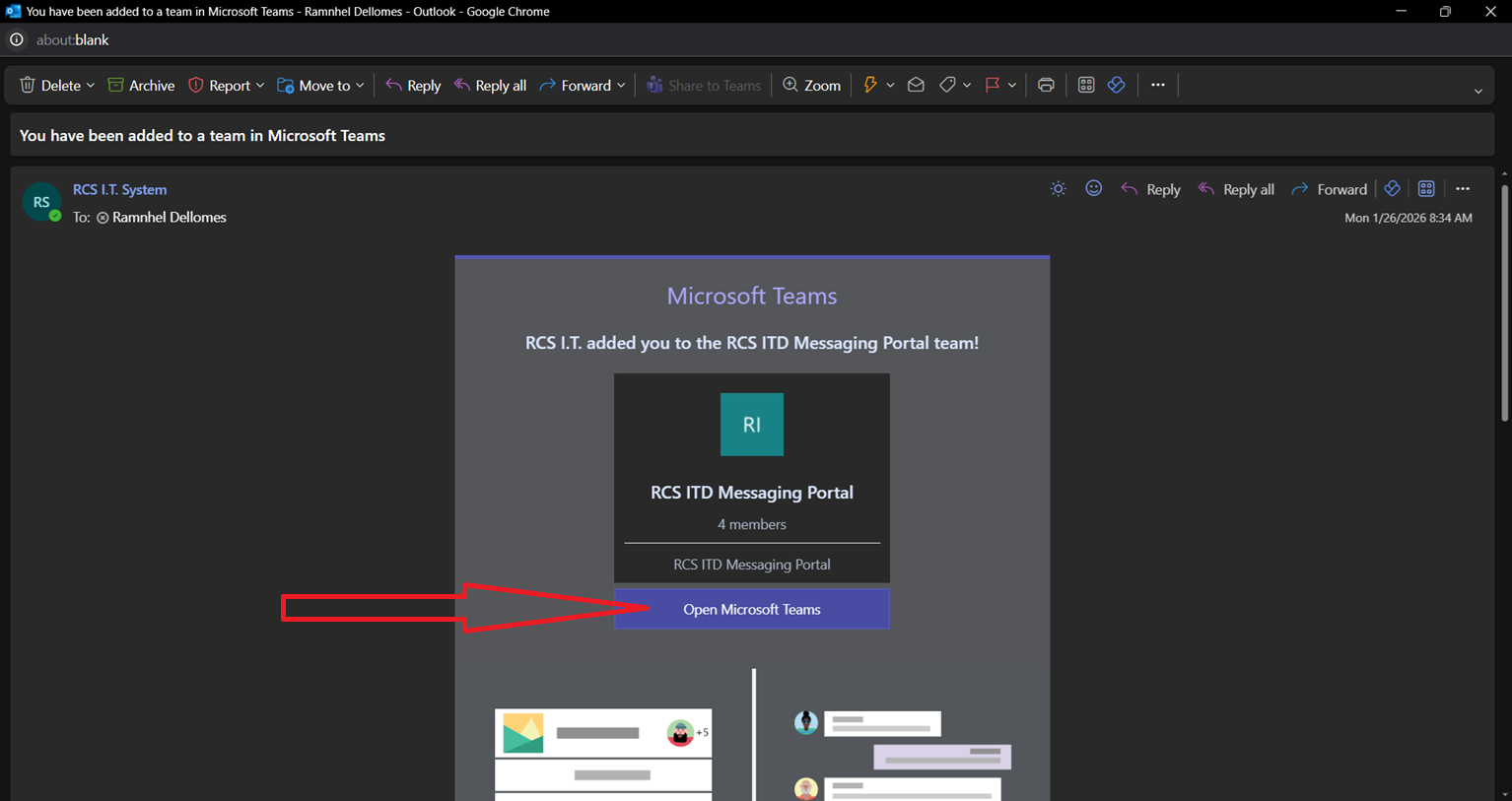
Step 1. If you received an email indicating that you are invited to a specific “Teams/Channel”, click on “Open Microsoft Teams”.
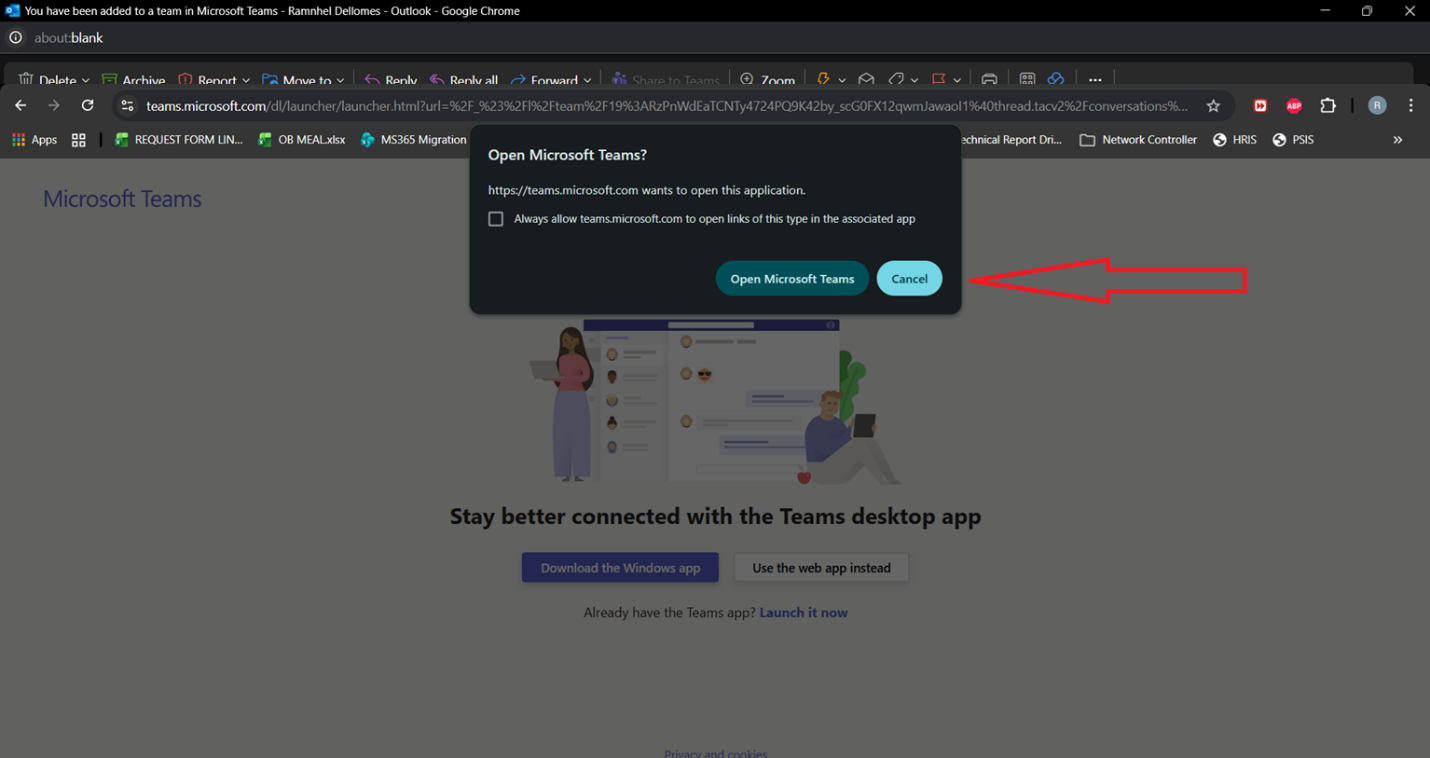
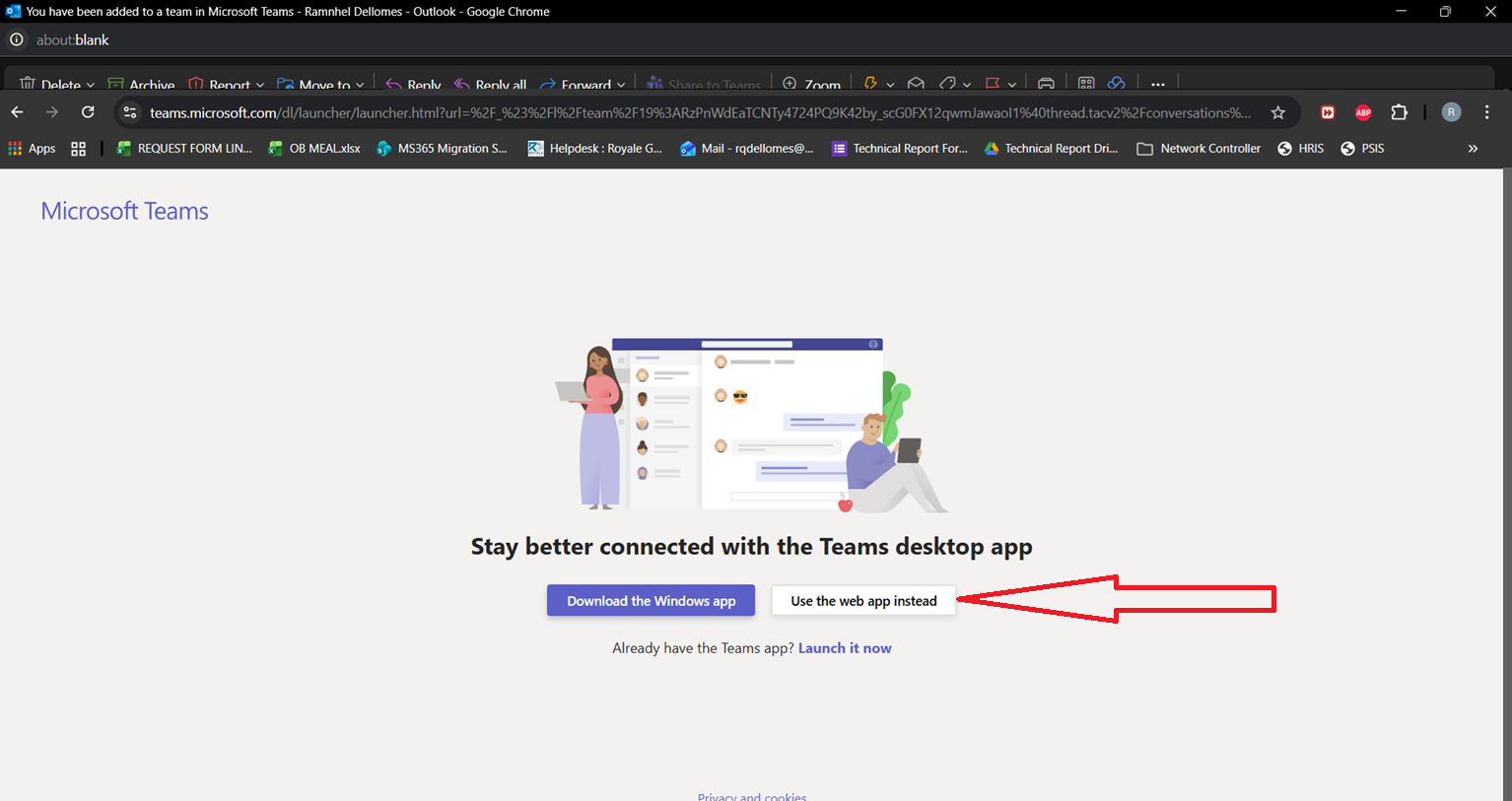
Step 2. Click on “Cancel” button and click on “Use the web app instead”.
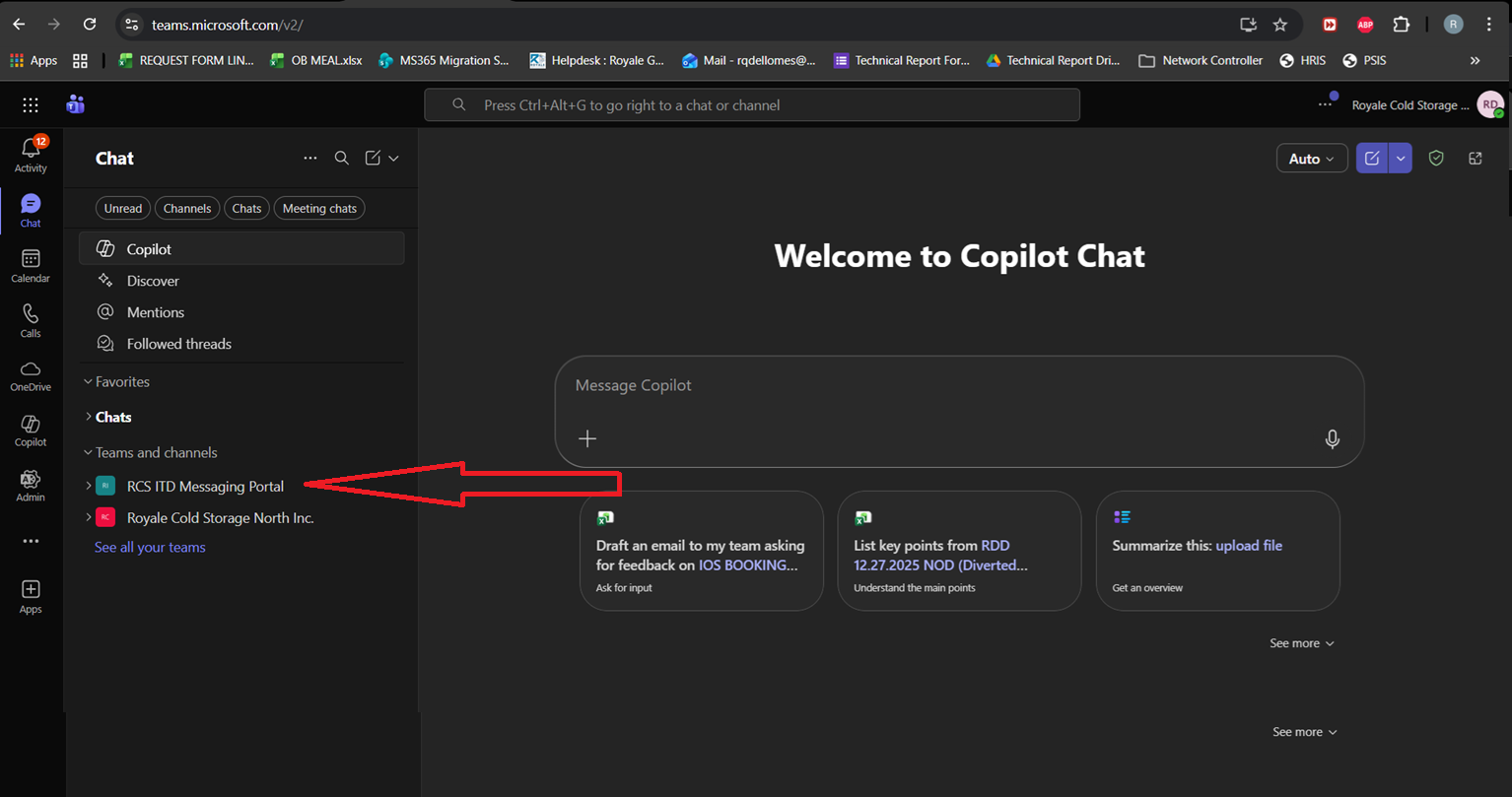
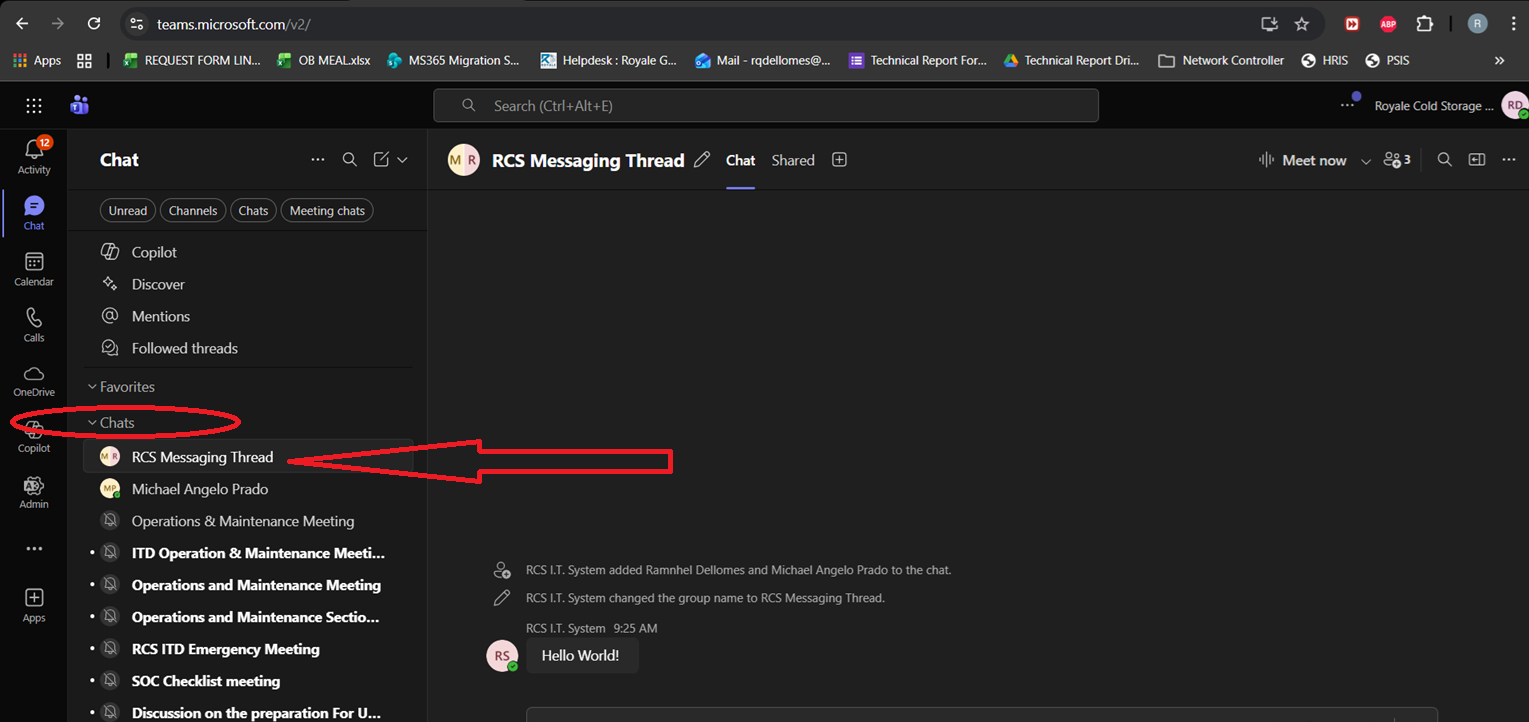
Note: You will be redirected on MS Teams “Web Portal” and you can now view the “Teams/Channel” that you were invited from. (Please see screen shot below for reference.)
INTERACT USING "CHATS"
IMPORTANT NOTE: That the “Admin/Inviter” will start conversation once the invitation is accepted by the “Invitee”. So, it needs to be confirmed and created by the admin before viewing the chat conversation. If the chat didn’t appear once it is created, try refreshing web browser. (Please see below screen shot for reference.)
ADD/SHARING ATTACHMENT USING RCS ONE DRIVE LINK
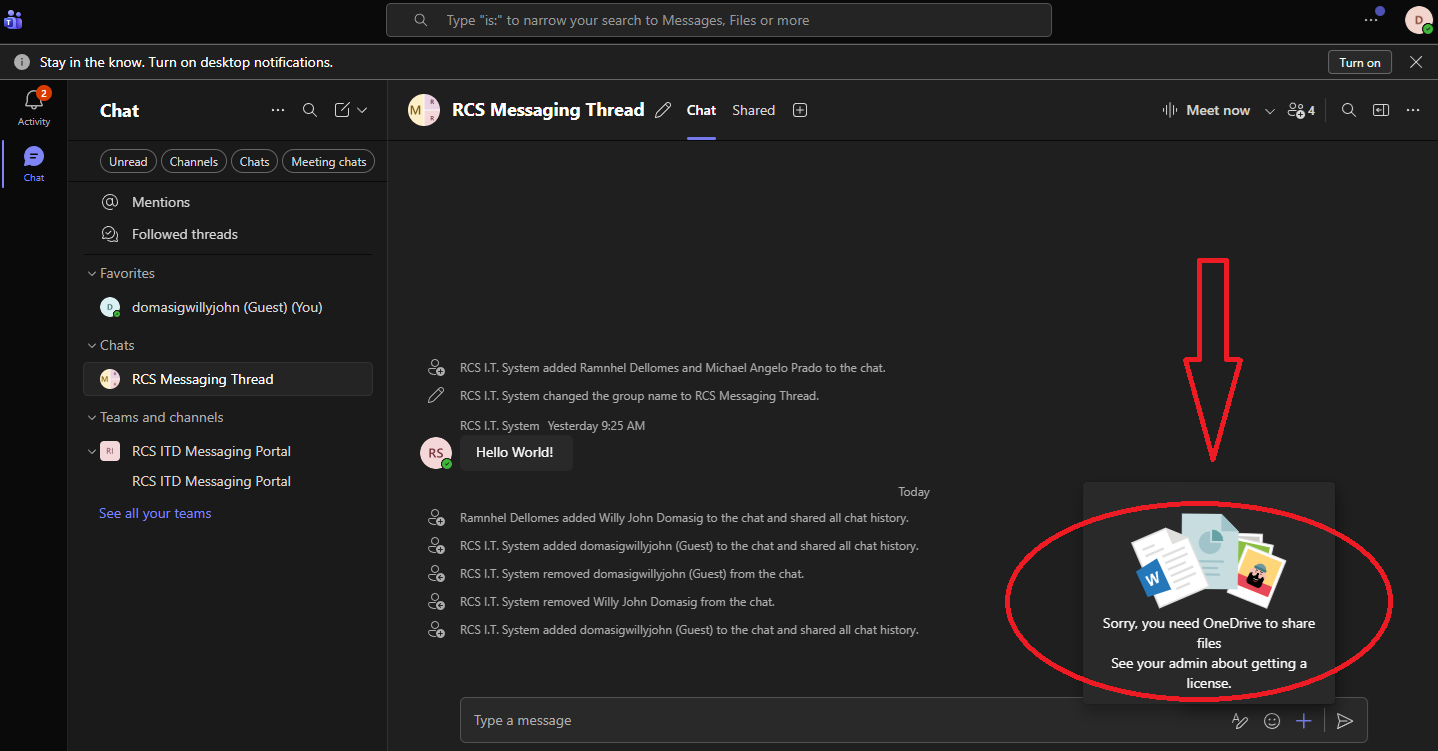
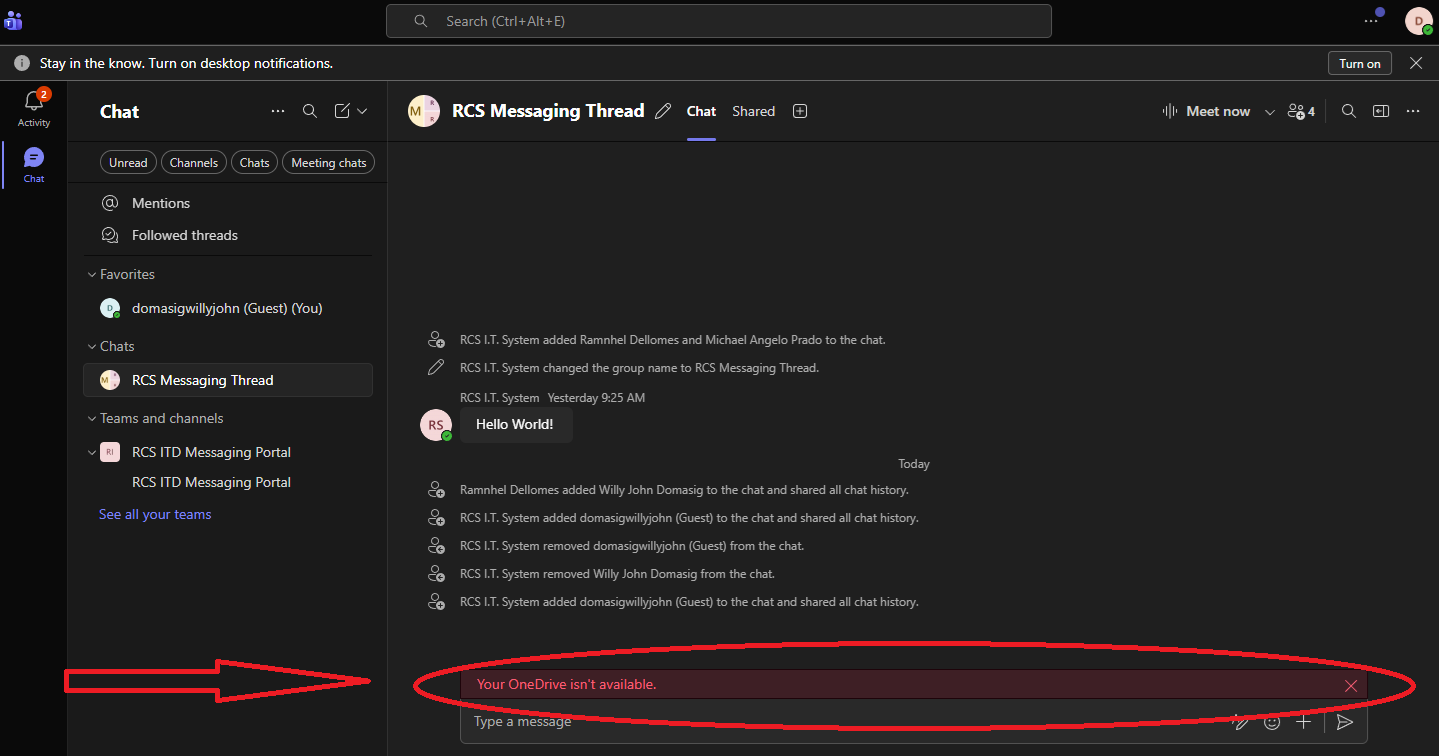
IMPORTANT NOTE: Without subscription plan on MS Teams, you might be encounter errors on below screen shot. Take note that only “Image” will pass through chat conversation. Any attachment e.g. (Word, Excel, PDF, etc.) are forbidden.
Step 1. To add specific attachment, you will need to use RCS Link provided by IT Department in order to view by the client. (Please see below link for reference.)
RCS Marilao : Jollibee Foods Corporation (JFC-MARILAO)
RCS Plaridel: Jollibee Foods Corporation (JFC-PLARIDEL)
RCS Villasis/Urdanet/Tarlac: Jollibee Foods Corporation (JFC-VILLASIS)
RCS Taytay: Jollibee Foods Corporation (JFC-TAYTAY)
RCS Cabuyao: Jollibee Foods Corporation (JFC-CABUYAO)
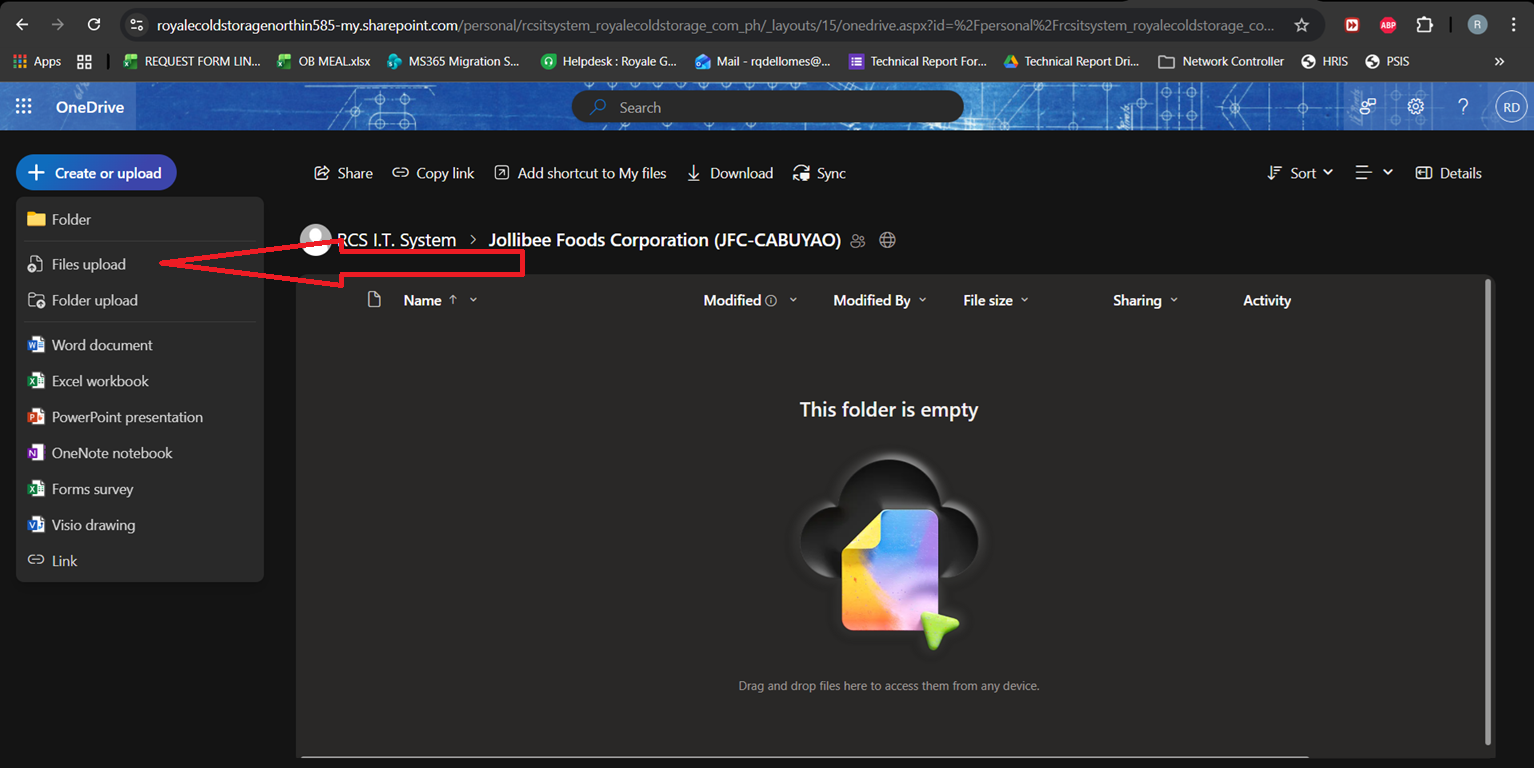
Step 2. Click on “Create or upload”.
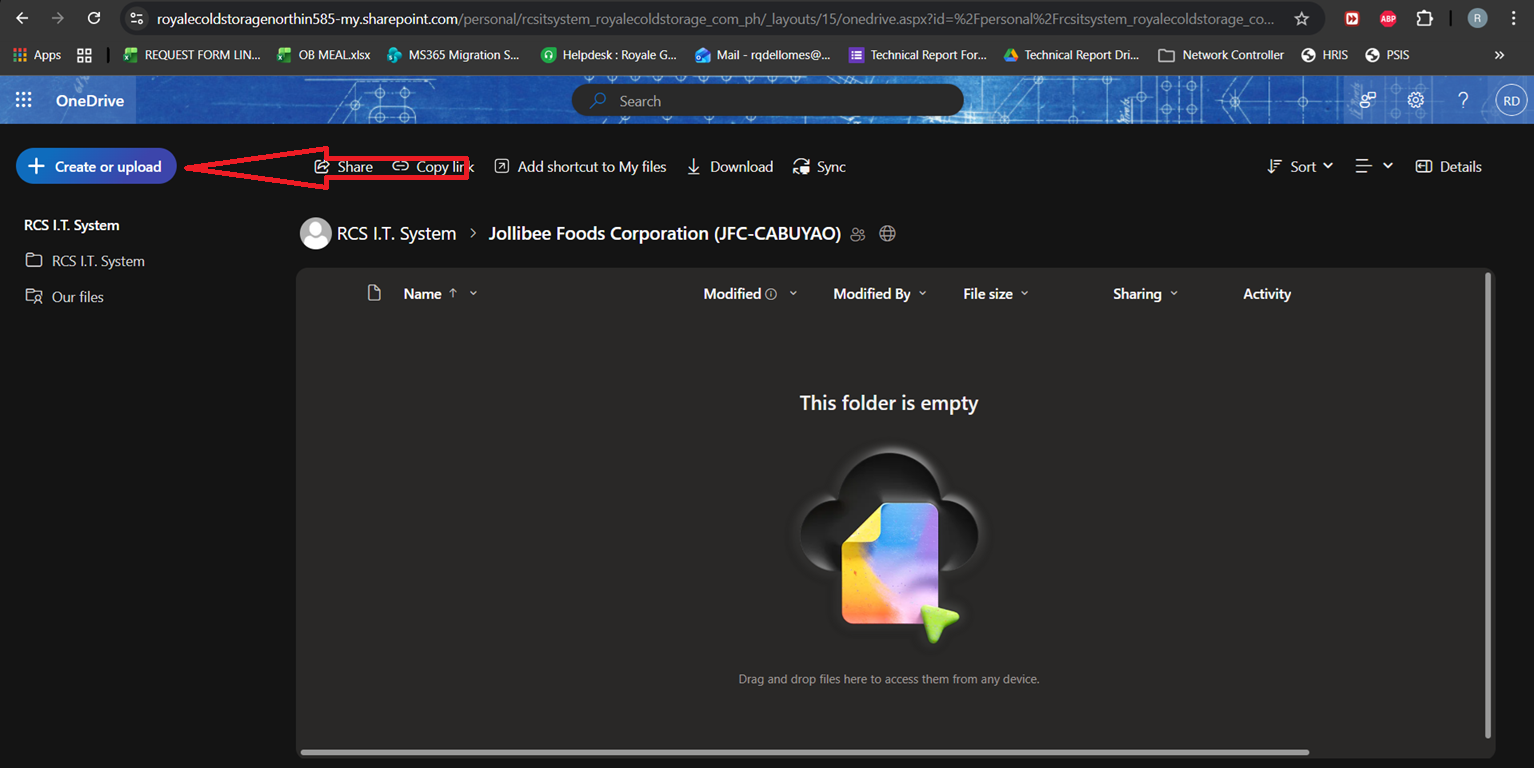
Step 3. Click on “Files upload”.
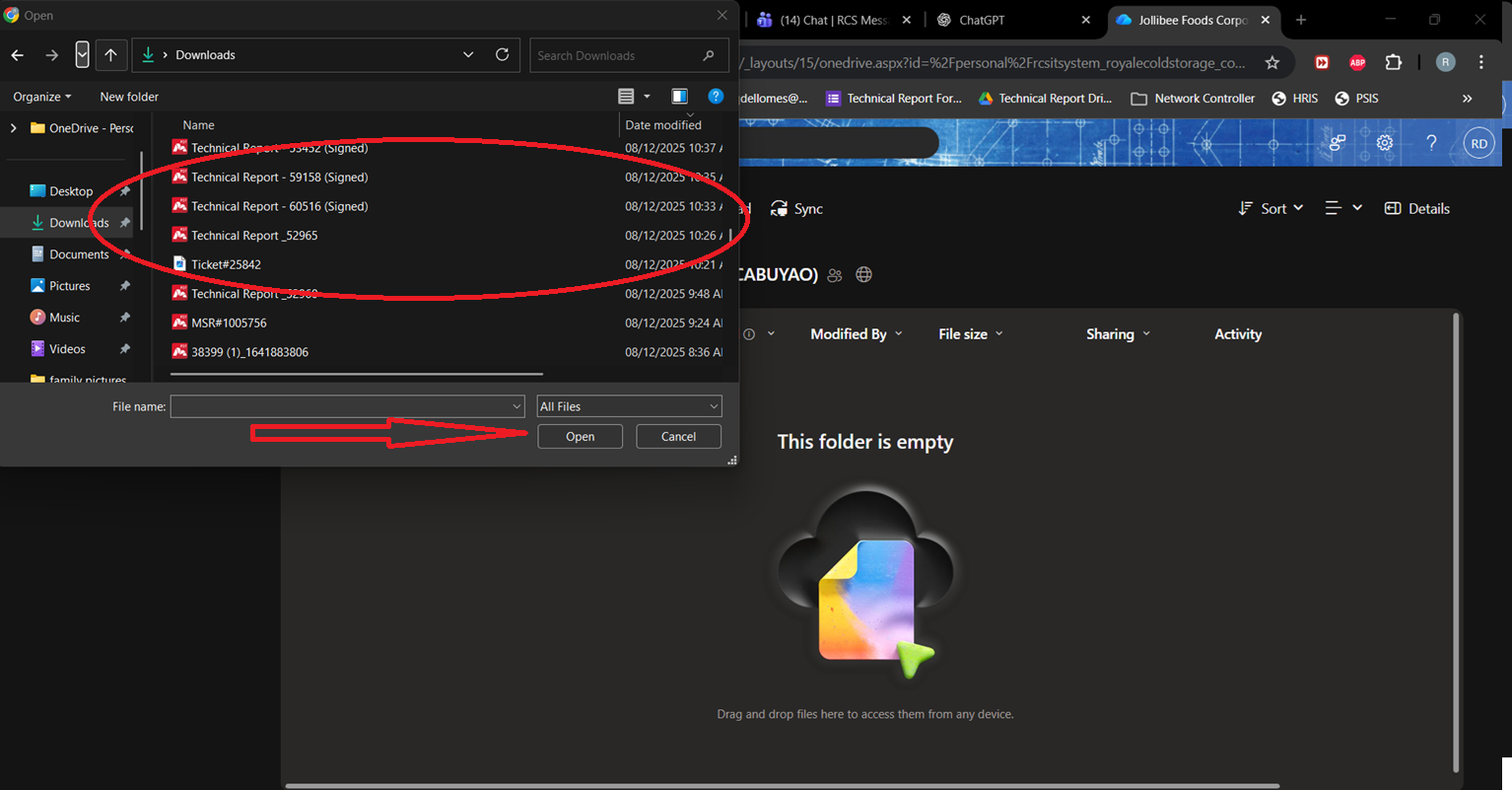
Step 4. Select file and click “Open” to upload files
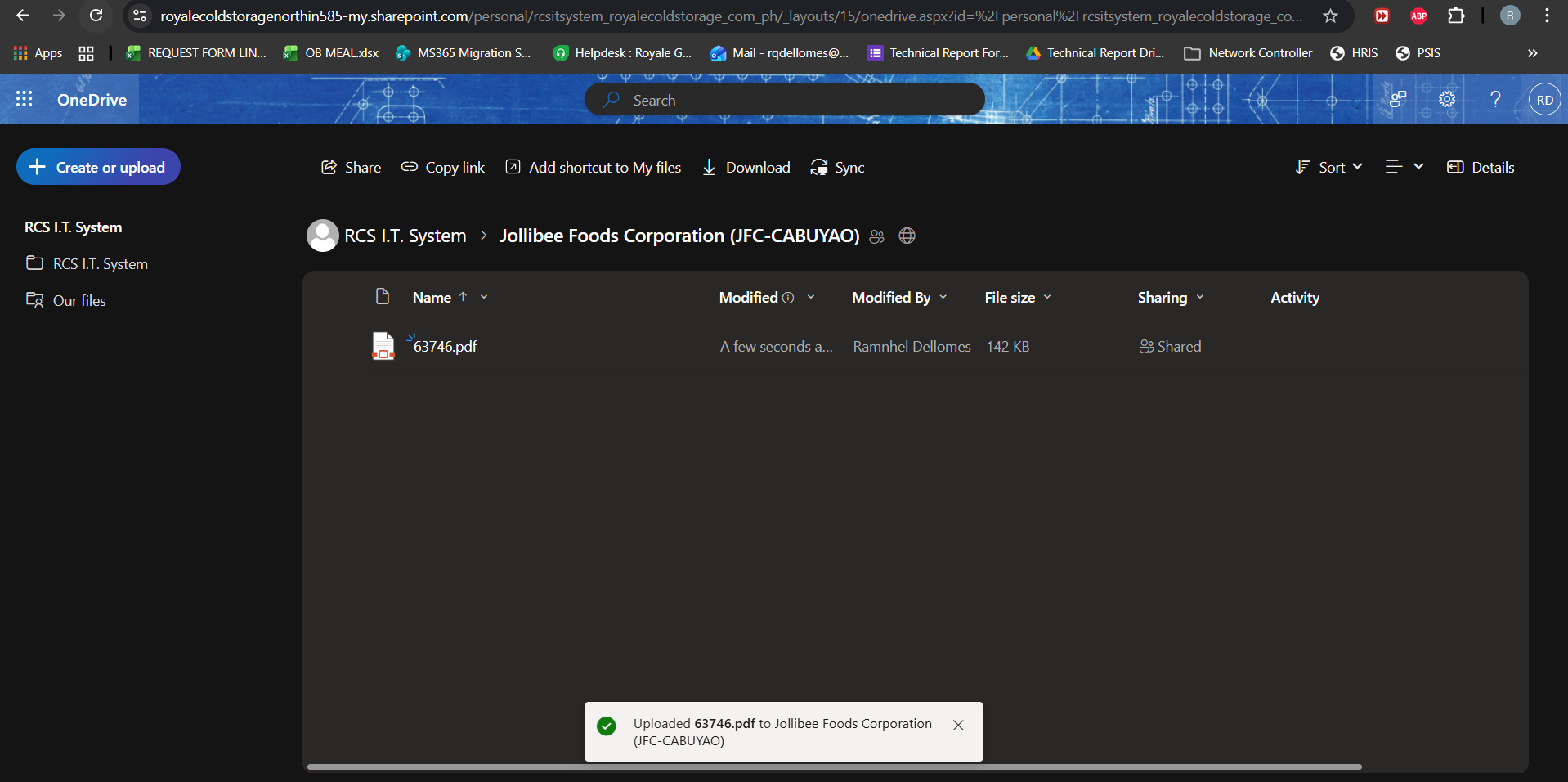
Step 5. After uploading, click on “Three dotted line” beside on file name and click “Copy Link”.
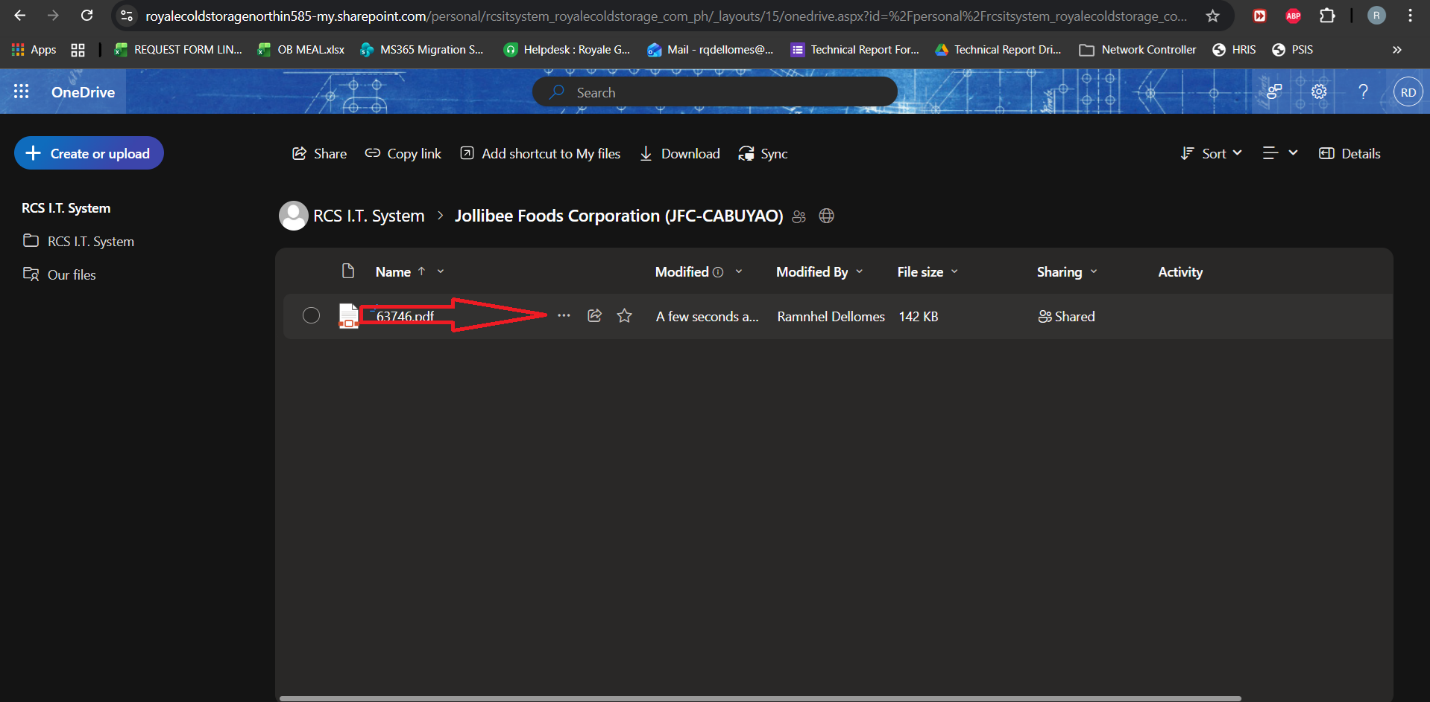
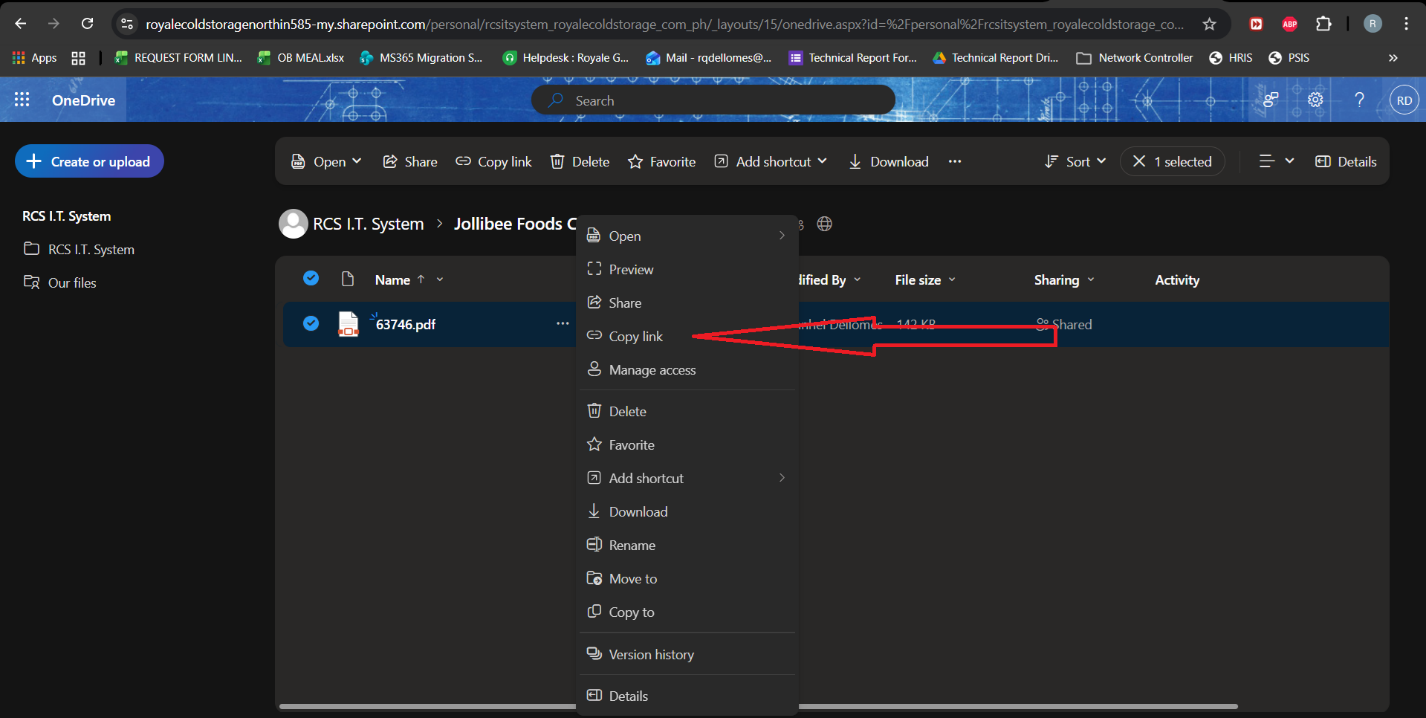
IMPORTANT NOTE: If the “Copy Link” button didn’t appear on your screen, contact IT Department.
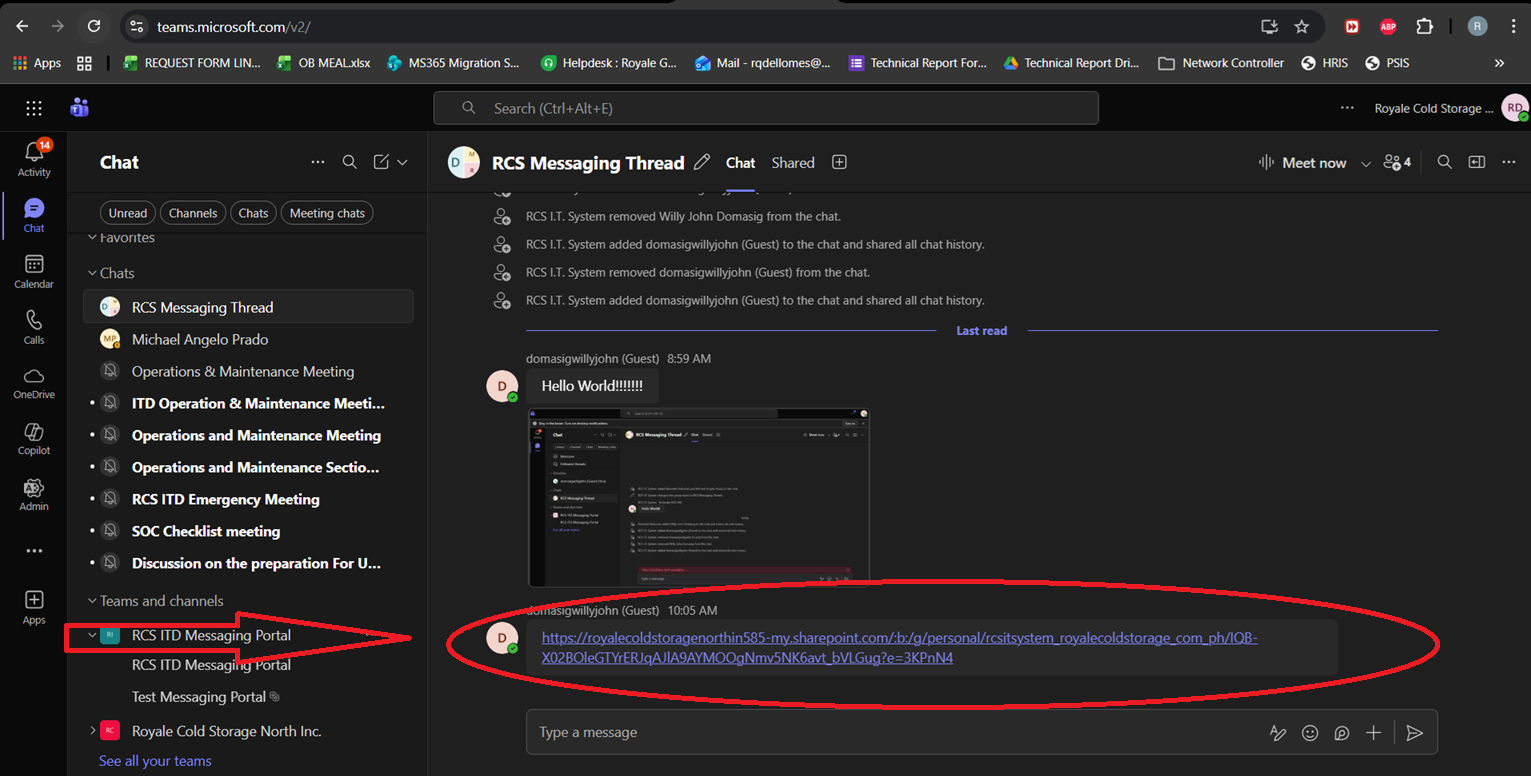
Step 6. Paste copied link on specific “Group Chat” to view by the client/receiver and click “Send”.
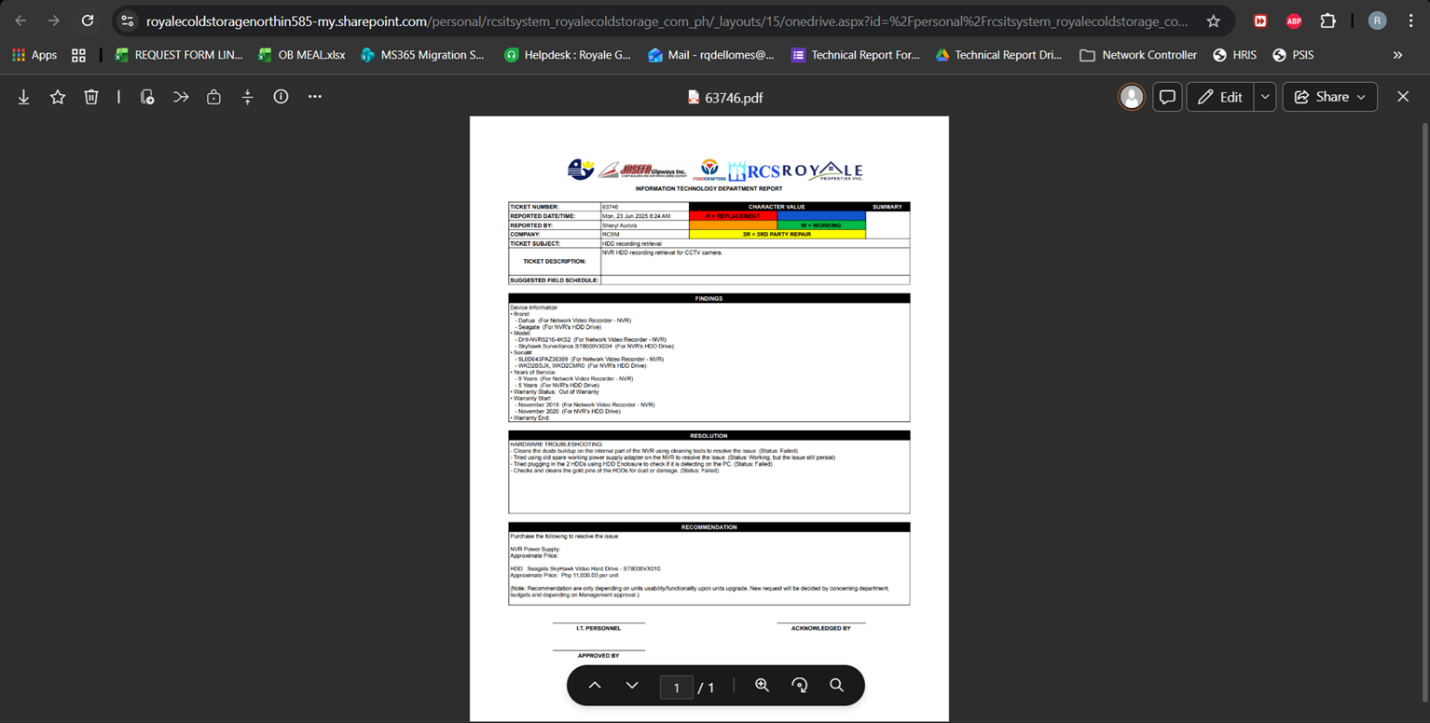
Note: Once the link provided received & clicked by the “Receiver” on “Group Chat”, it will automatically open on the other tab on the same browser. (Please see below sample screen shot for reference.)
Was this article helpful?
That’s Great!
Thank you for your feedback
Sorry! We couldn't be helpful
Thank you for your feedback
Feedback sent
We appreciate your effort and will try to fix the article