ABOUT:
RCS Technical Report System is a strategic set of business practices and tools designed to create technical assessment and provides solution on the defective IT Devices.
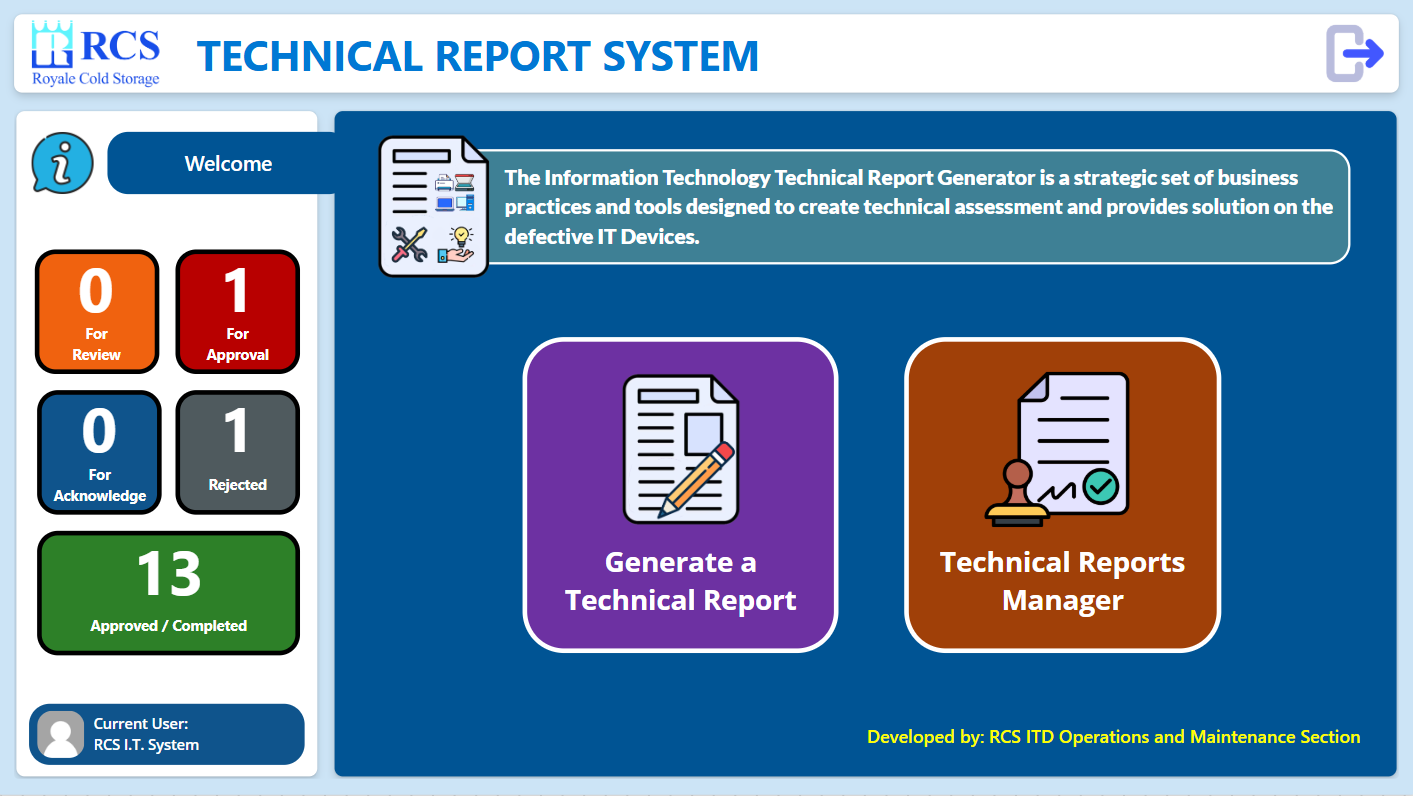
RCS Technical Report System's Main Dashboard
Click the Link below to launch the system:
GENERATING A TECHNICAL REPORT
To start creating new Technical Report form, click on "Generate a Technical Report" on the Main Dashboard.
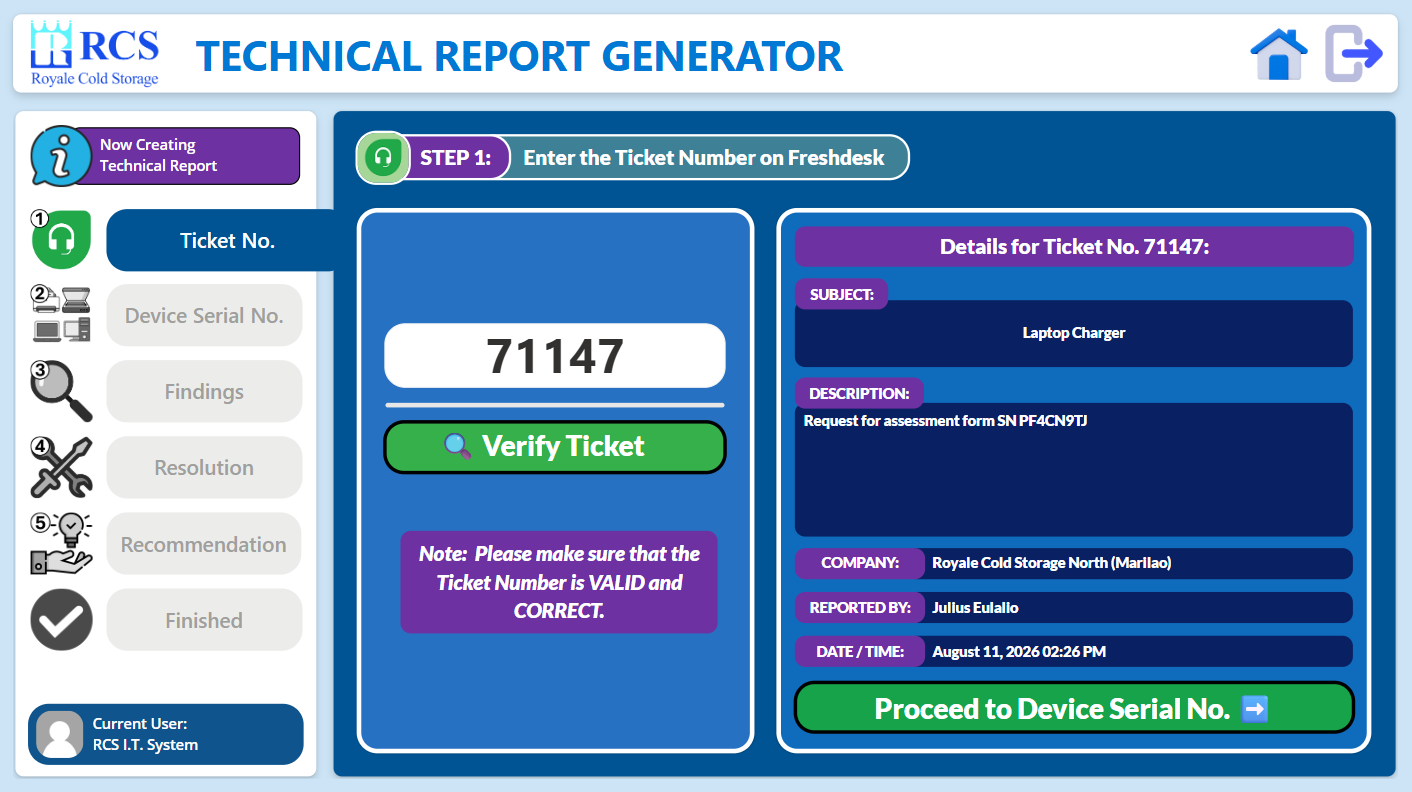
STEP 1:
- Enter the Ticket Number on Freshdesk Ticketing site that needs to create a Technical Report, then Click on Proceed to Device Serial No. to continue.
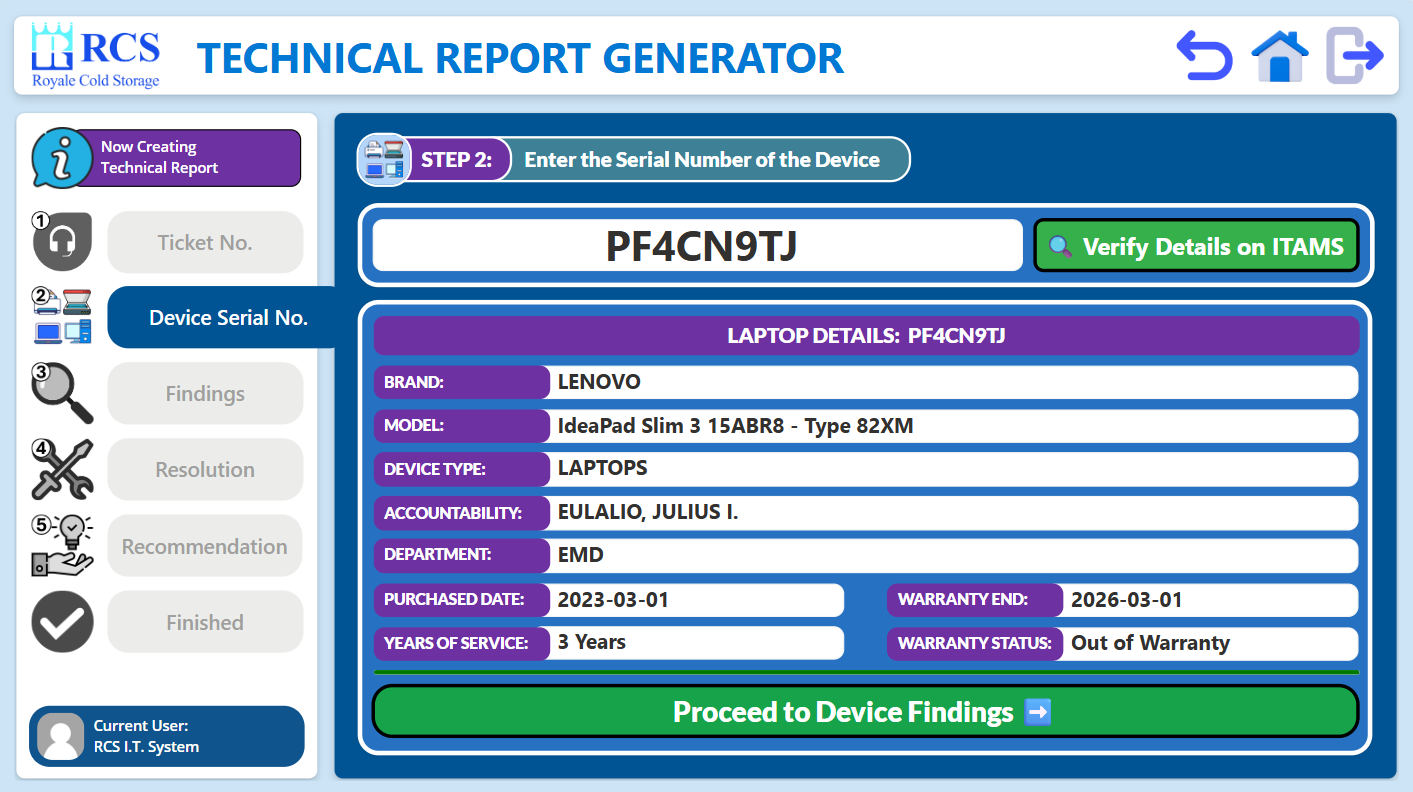
STEP 2:
- Enter the Serial Number of the Defective Device, then Click on Verify Details on ITAMS to automatically fetch the details of the said device, then Click on Proceed to Device Findings to continue.
- Note: If the Serial Number of the Device is not found on the ITAMS Server, you can manually input its details below to be able to proceed on the next step.
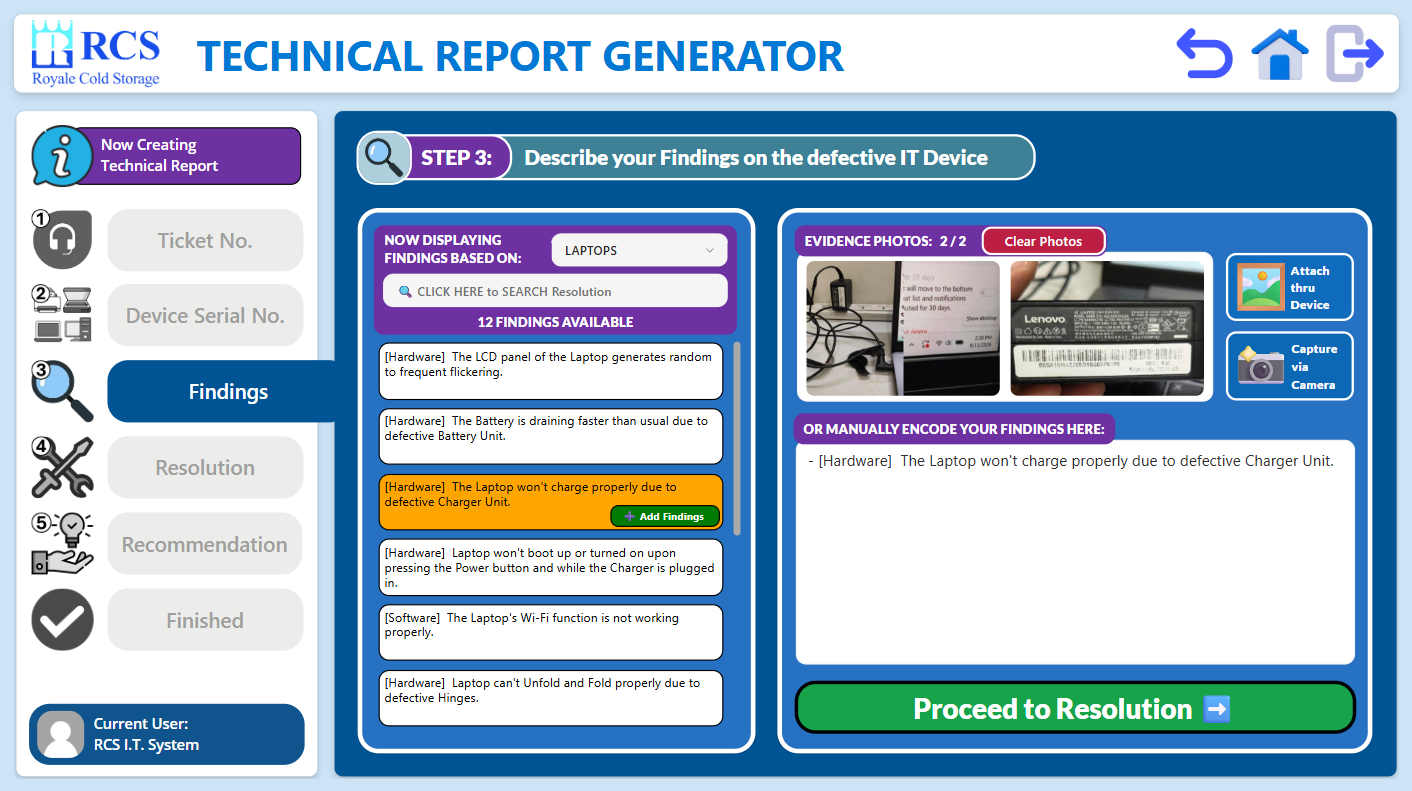
STEP 3:
- Describe your Findings on the defective Device by either selecting presets of Findings based on the type of device or by manually encoding it on the right side, then Click on Proceed to Resolution to continue.
- After that, you need to attach at least one (1) Evidence Photo regarding on the findings of the device (maximum of two (2) photos).
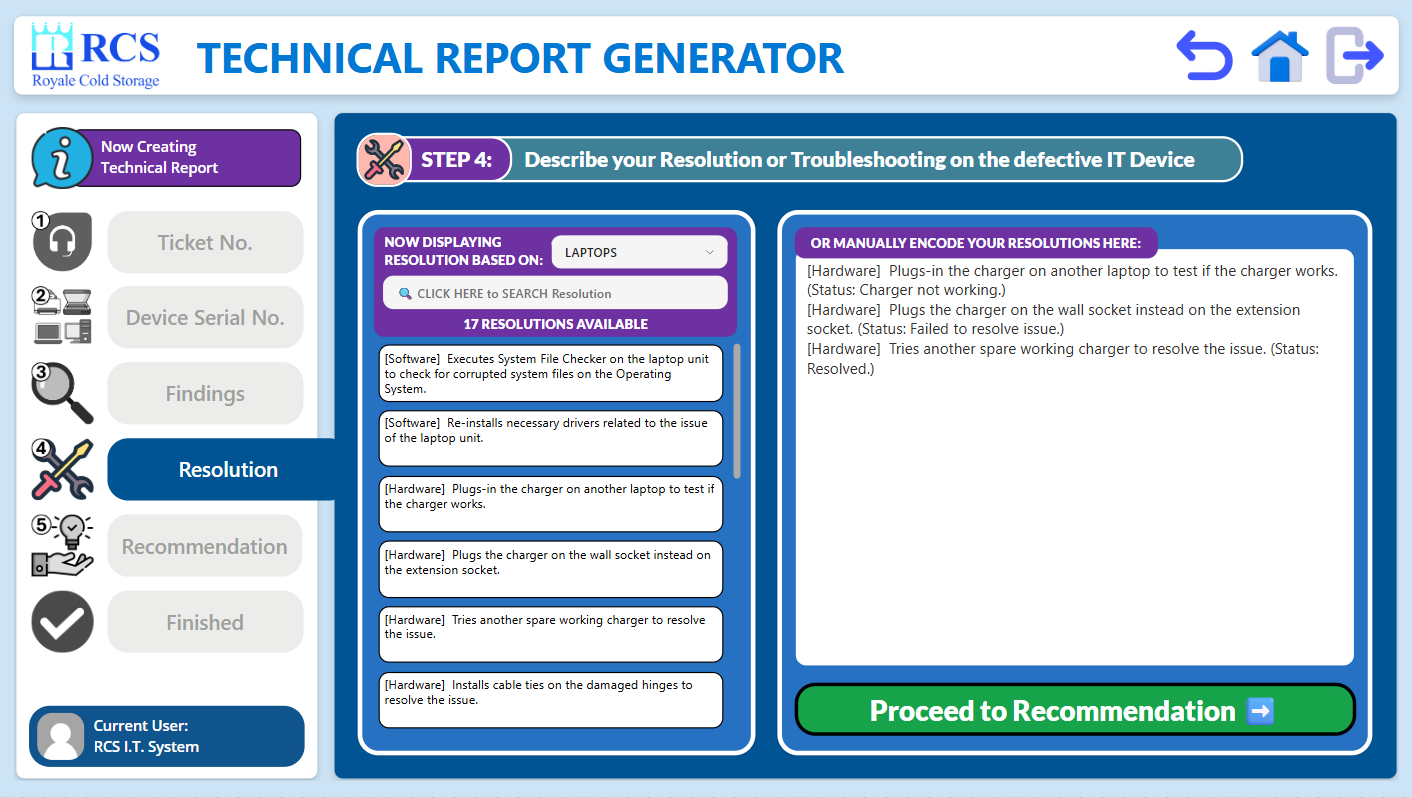
STEP 4:
- Describe your Resolution or Troubleshooting on the defective Device by either selecting presets of Resolutions based on the type of device or by manually encoding it on the right side, then Click on Proceed to Recommendation to continue.
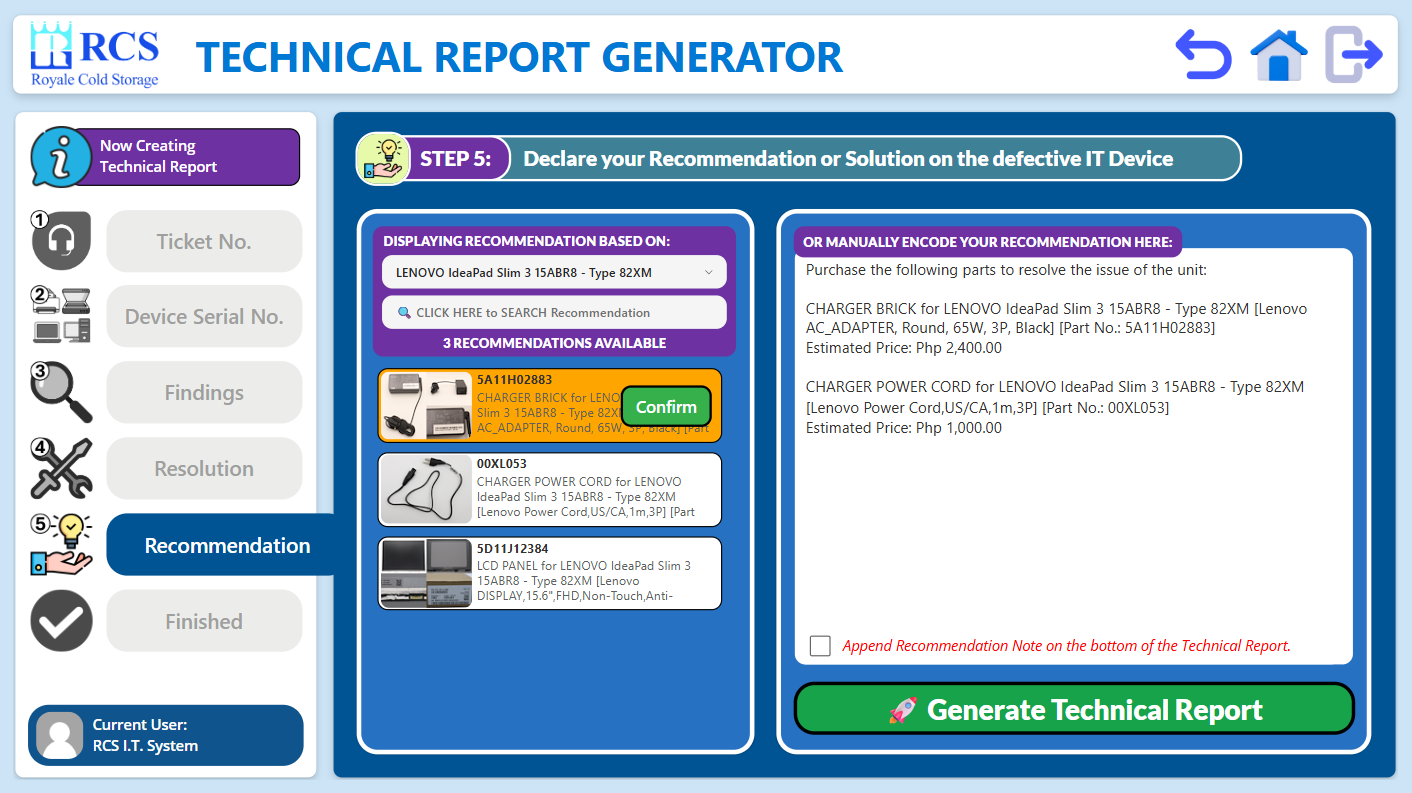
STEP 5:
- Describe your Recommendation or Solution on the defective Device by either selecting presets of Parts Recommendation based on the Brand & Model of the defective device or by manually encoding it on the right side, then Click on Generate Technical Report to continue.
- Note: To add a Recommendation Note on the bottom of the Recommendation section, Check the "Append Recommendation Note" to automatically add it on the generated Technical Report.
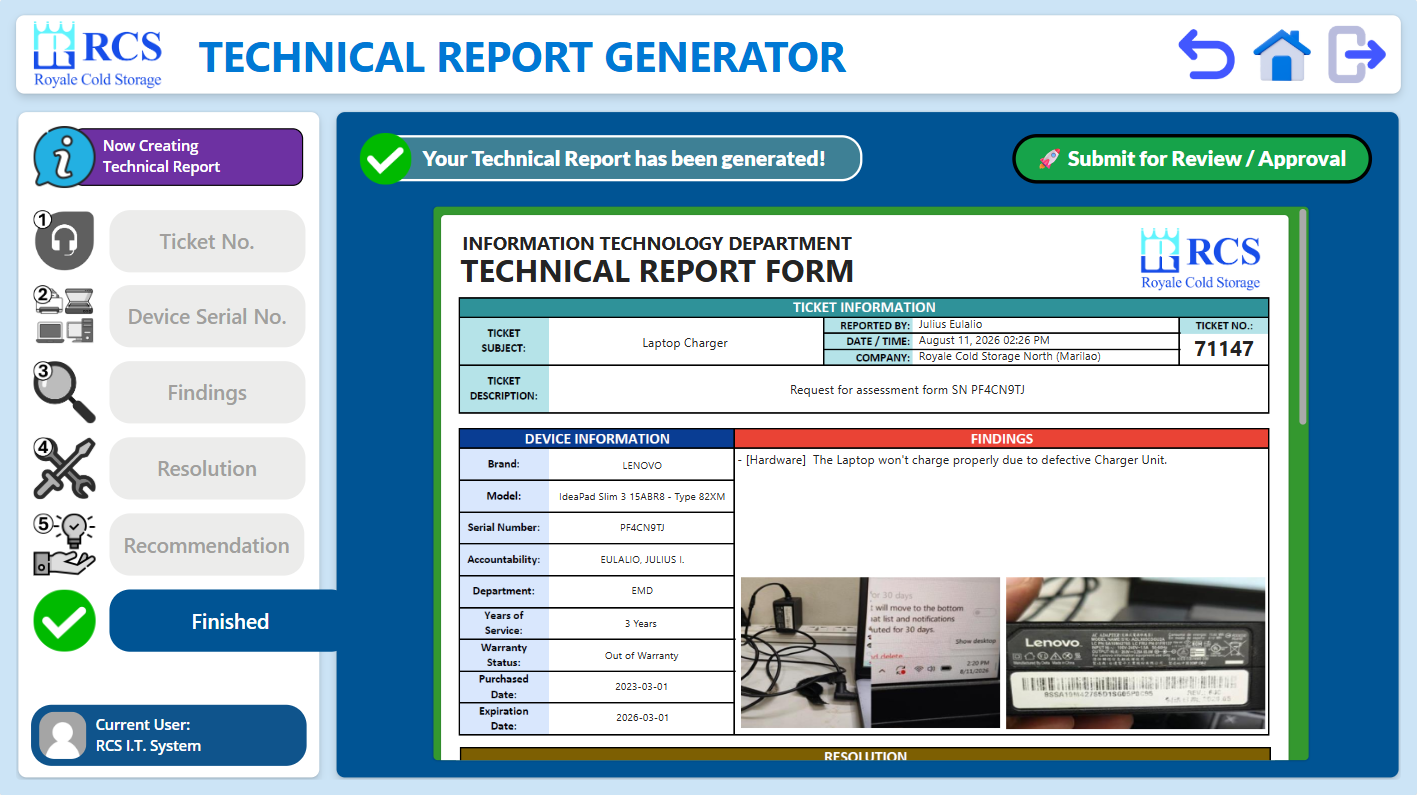
STEP 6:
- After clicking the Generate Technical Report, you can now view and check it before submitting it for Review / Approval.
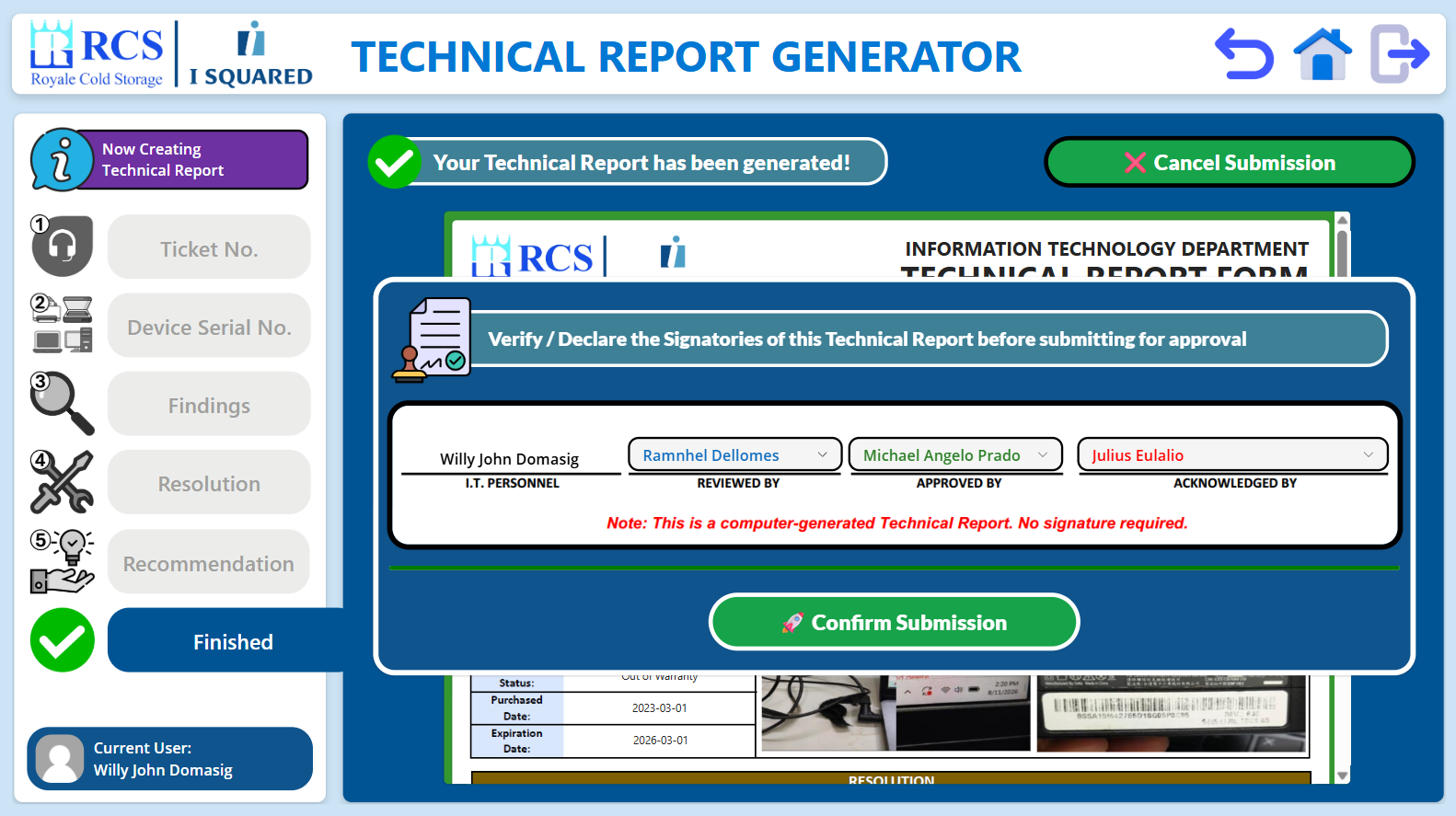
STEP 7:
- When you are ready to Submit the Technical Report for Review / Approval, Click on the "Submit for Review / Approval" button, then verify or declare the signatories of the Technical Report before submitting it for approval, then Click on Confirm Submission to proceed.
TECHNICAL REPORTS MANAGER
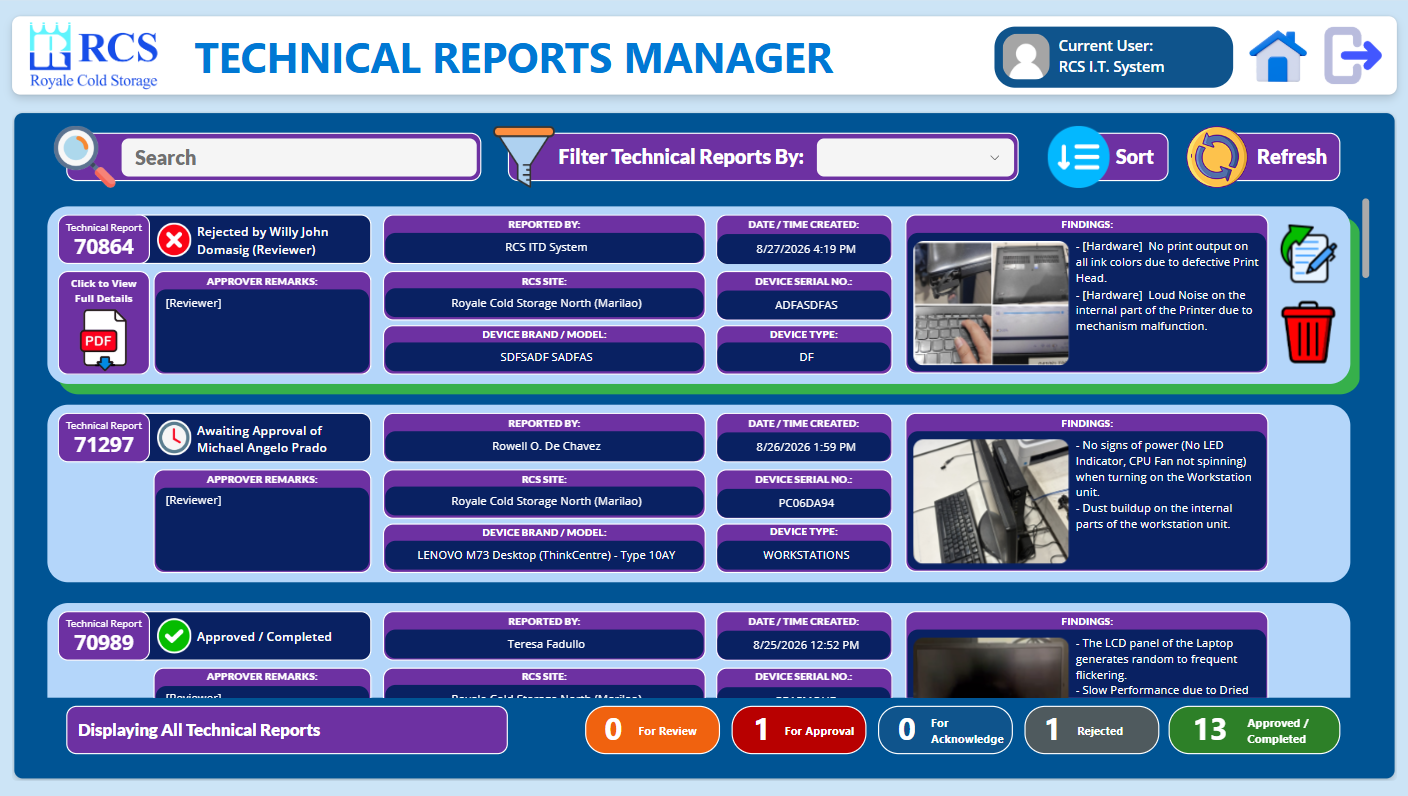
Technical Reports Manager' Main Dashboard
To view, monitor status, or modify the created Technical Reports, Click on "Technical Reports Manager" on the Main Dashboard.
MONITOR STATUS:
- To monitor the status of the Technical Report, look for this interface on the upper left corner of each Technical Report items.




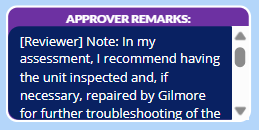
APPROVER REMARKS:
- You may check and read the Approver's Remarks on the specific Technical Report by looking on this interface on the lower left corner of each Technical Report items.
VIEW GENERATED TECHNICAL REPORT:
- To view the full contents of the Technical Report, Click on this logo to open the PDF file of the said Technical Report in a new tab.

SEARCH, FILTER, SORT AND REFRESH TECHNICAL REPORTS LIST:
- To manage the viewing of the Technical Reports List, you can use the Search, Filter, and Sort function.
- To update the current statuses of the Technical Reports List, you may click on Refresh button to refresh the lists.

REVISE / MODIFY THE CONTENTS OF THE TECHNICAL REPORT:
- Incase a specific Technical Report is either rejected or needs to modify its content, you may click on this icon below to Revise and modify the Technical Report.

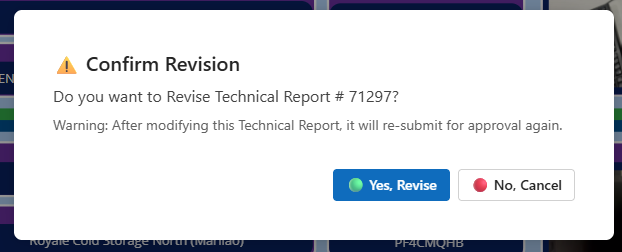
- Note: This popup will appear before you can revise the Technical Report. After modifying this Technical Report, it will re-submit for approval again.
DELETING TECHNICAL REPORT:
- To delete a specific Technical Report, you may click on this icon to permanently Delete the Technical Report.

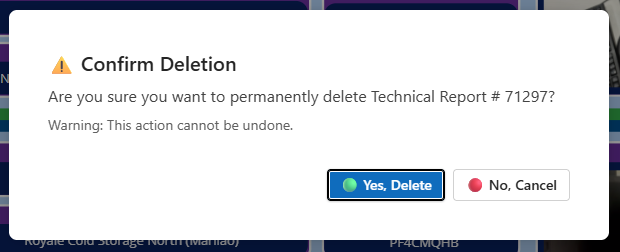
- Note: This popup will appear before you can delete a specific Technical Report. Upon clicking "Yes, Delete", the specific Technical Report will be permanently deleted on the system.
Was this article helpful?
That’s Great!
Thank you for your feedback
Sorry! We couldn't be helpful
Thank you for your feedback
Feedback sent
We appreciate your effort and will try to fix the article