ABOUT
The RCS Preventive Maintenance System is a printer preventive maintenance system combines scheduled physical tasks with automated monitoring to prevent hardware failures, maintain print quality, and extend equipment lifespans.
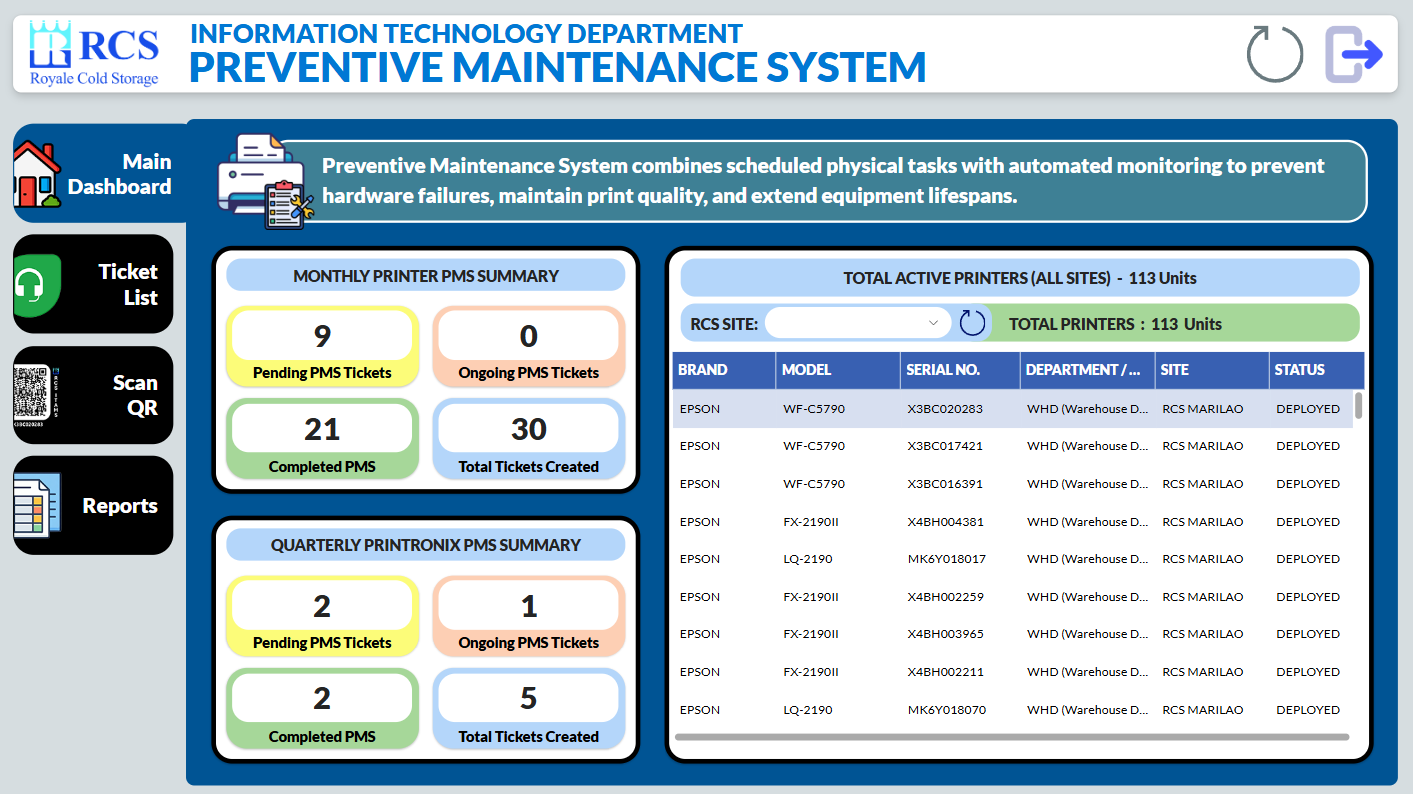
RCS Preventive Maintenance System's Main Dashboard
Click the Link below to launch the system:
RCS Preventive Maintenance System
CONDUCTING AND RECORDING OF PREVENTIVE MAINTENANCE OF PRINTERS
To start conducting a PMS, click on "Ticket List" on the Main Dashboard to select a Ticket based on which RCS Site should be conducting a PMS.
STEP 1:
- Select a RCS Site Ticket that you want to conduct PMS.
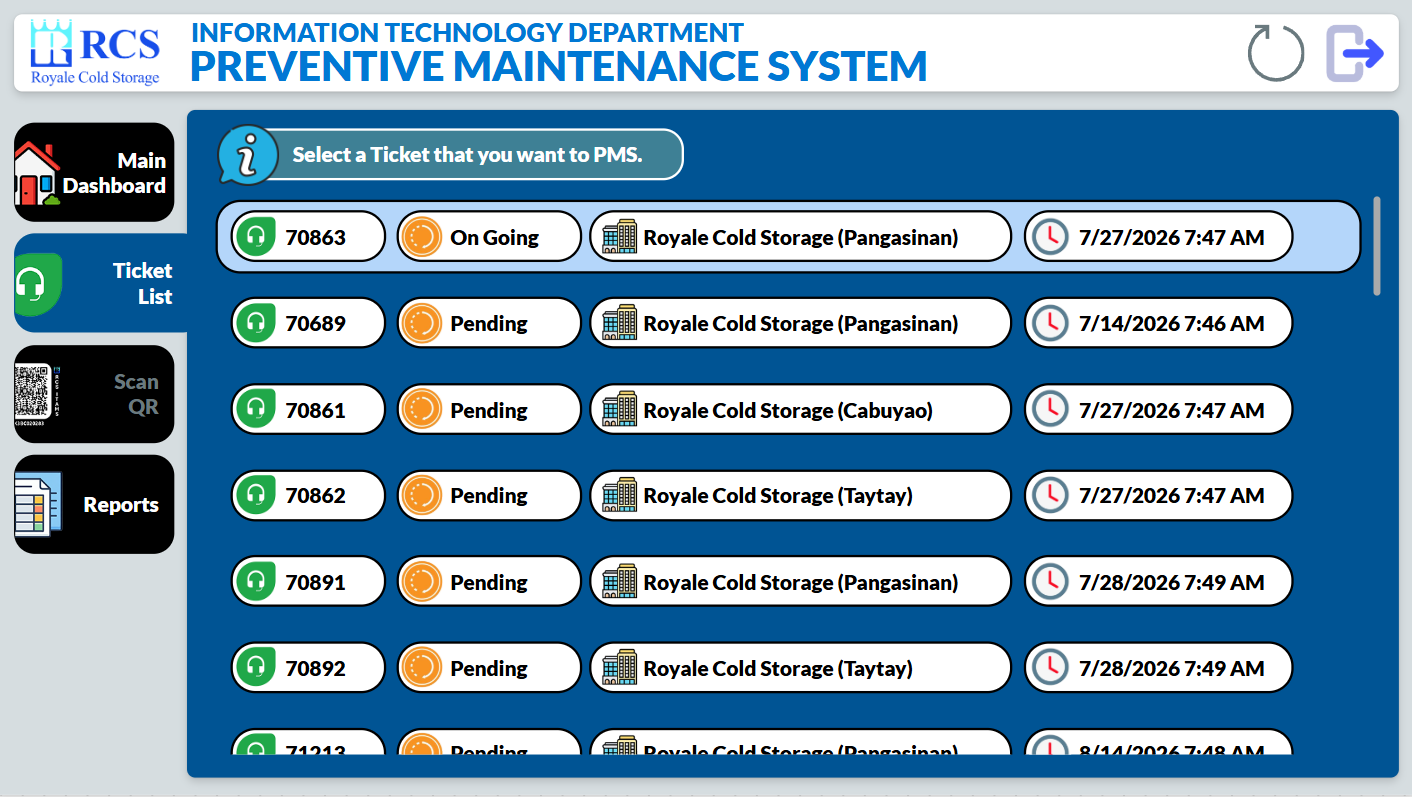
STEP 2:
- Select the Printer that you've already finished conducting PMS to be able to record it on the system.
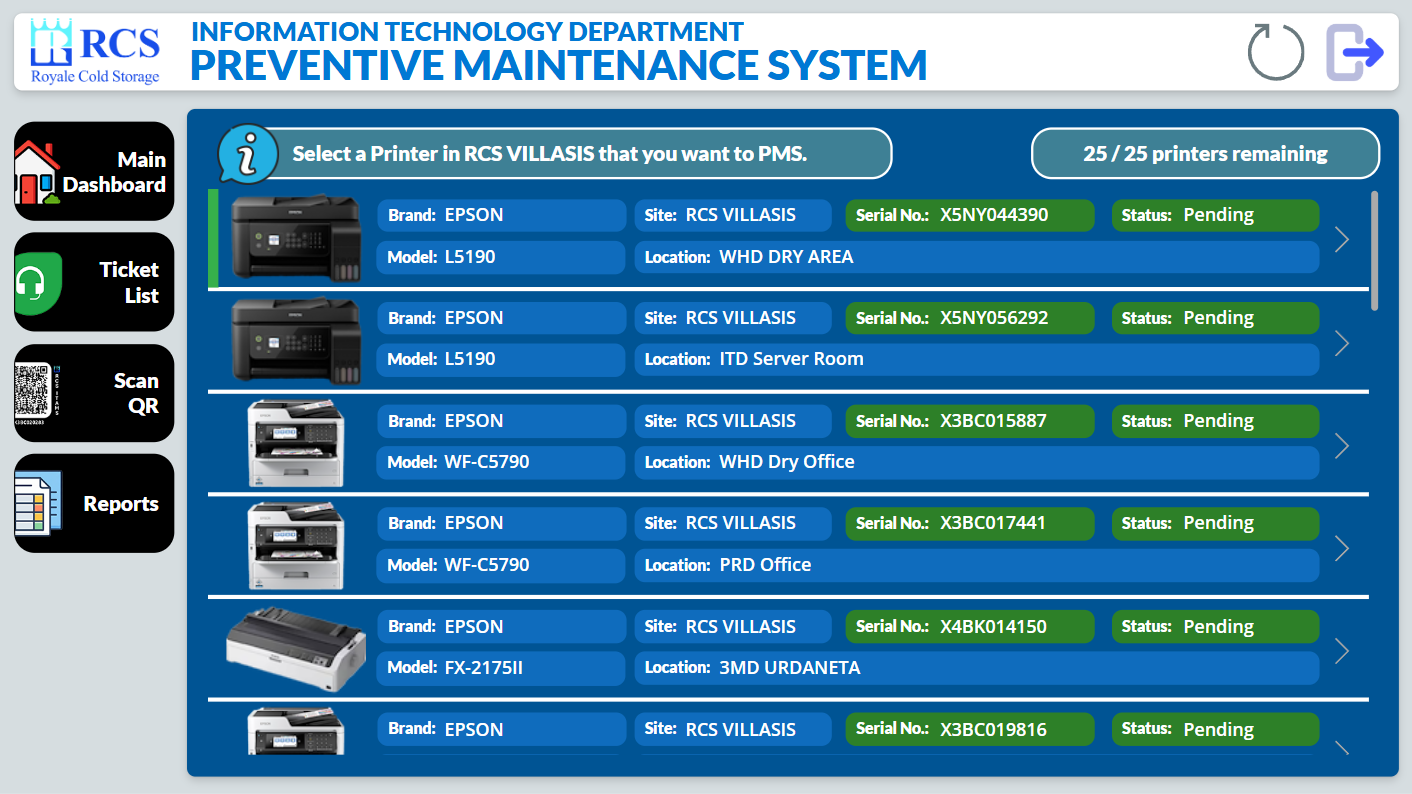
STEP 3:
- Validate the selected Printer by either Scanning the QR Code sticker attached on the Printer or Manually input the Serial Number of that Printer.
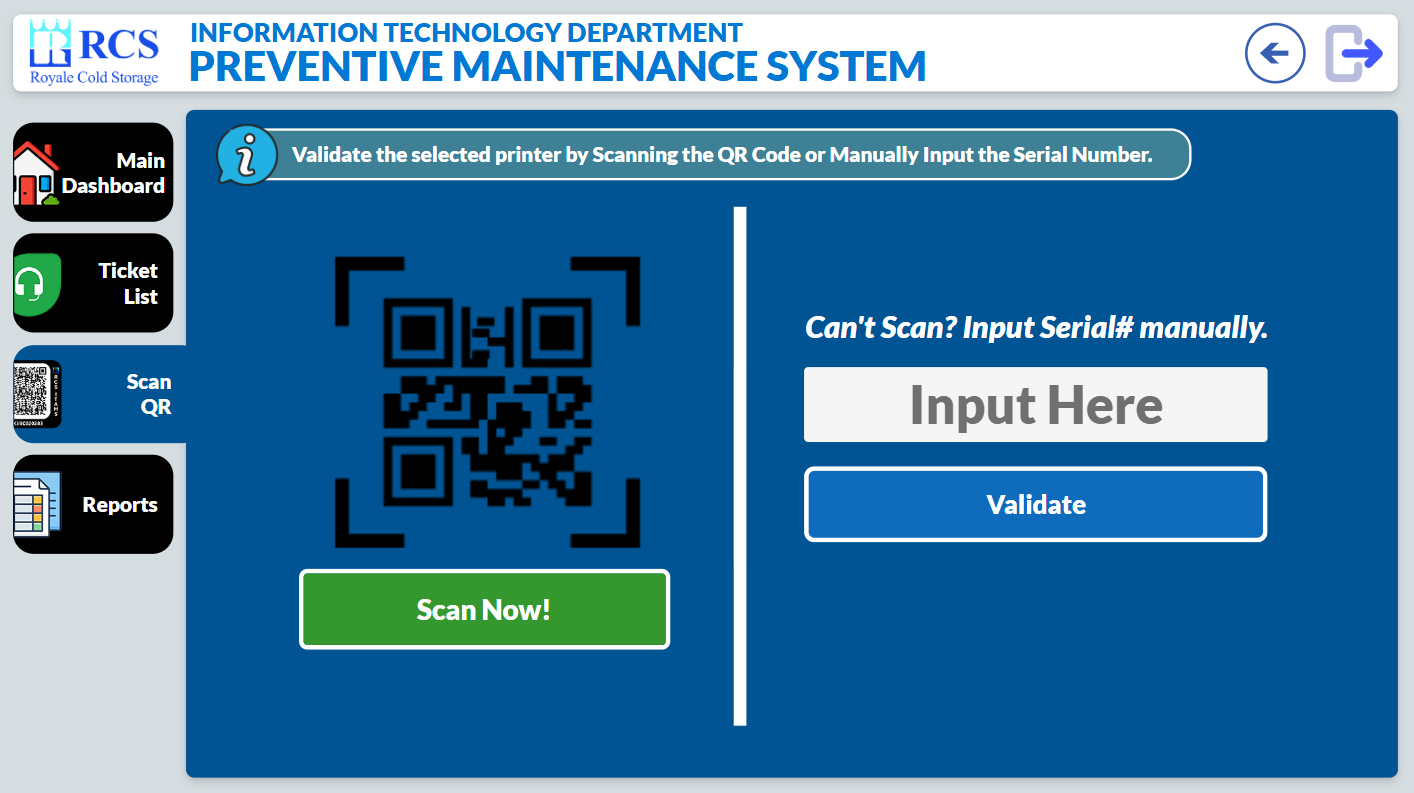
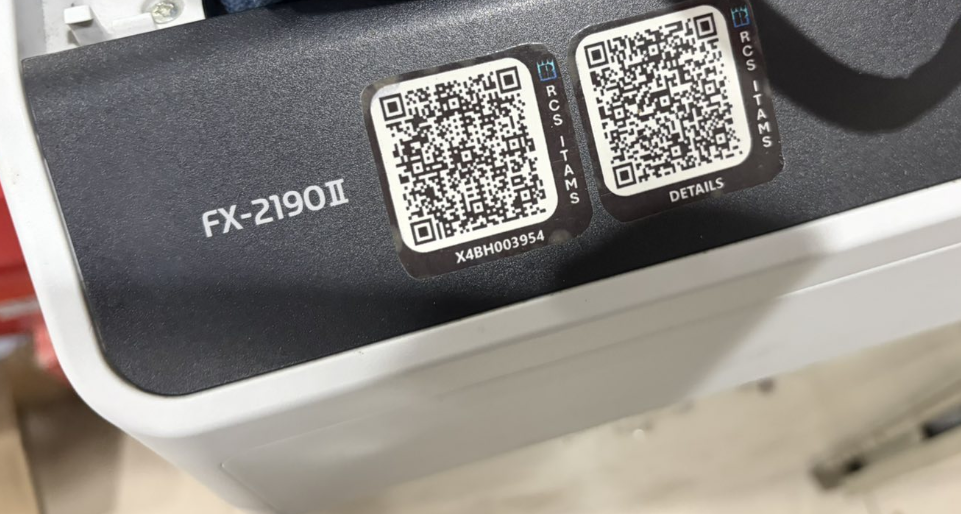
Sample QR Code sticker attached to the Printer.
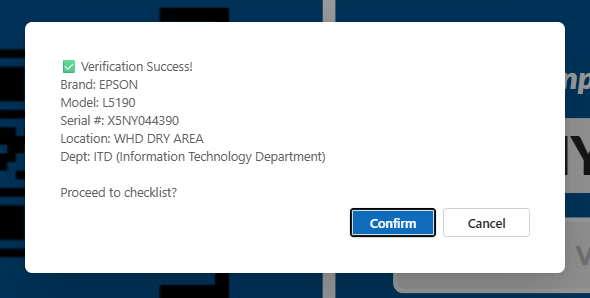
Popup will appear after scanning or manually encode the serial number of the printer.
STEP 4:
- After scanning the said Printer, the PMS Checklist will appear. Tally the Ink Levels and tick the corresponding checklist of the said Printer. Don't forget to leave a Remarks on it to be able to describe its current status.
- Also, you need to attach a Photo Evidence on the Printer that you've conducted PMS by clicking on "Take Photo" button, then Click on "Save PM Record" button to record it.
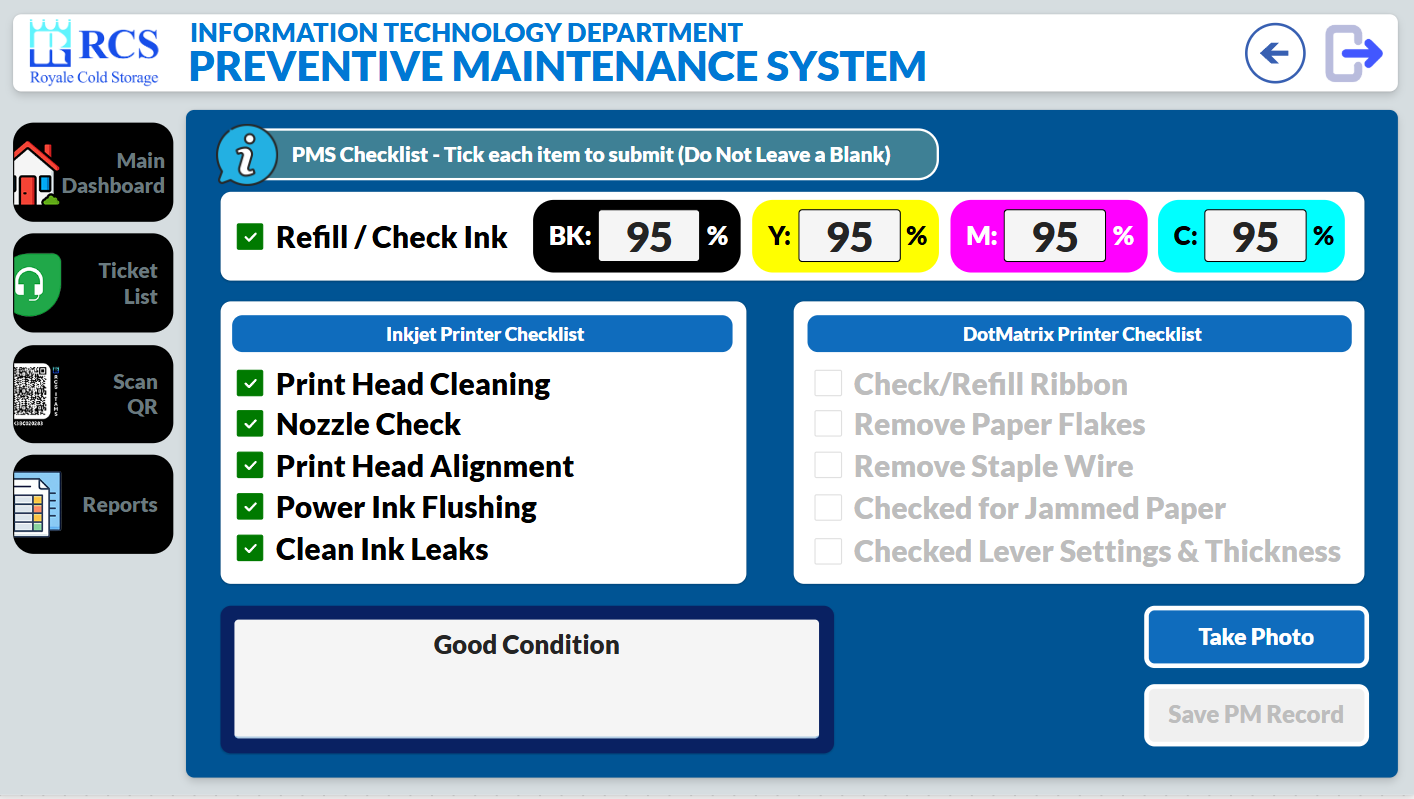
STEP 5:
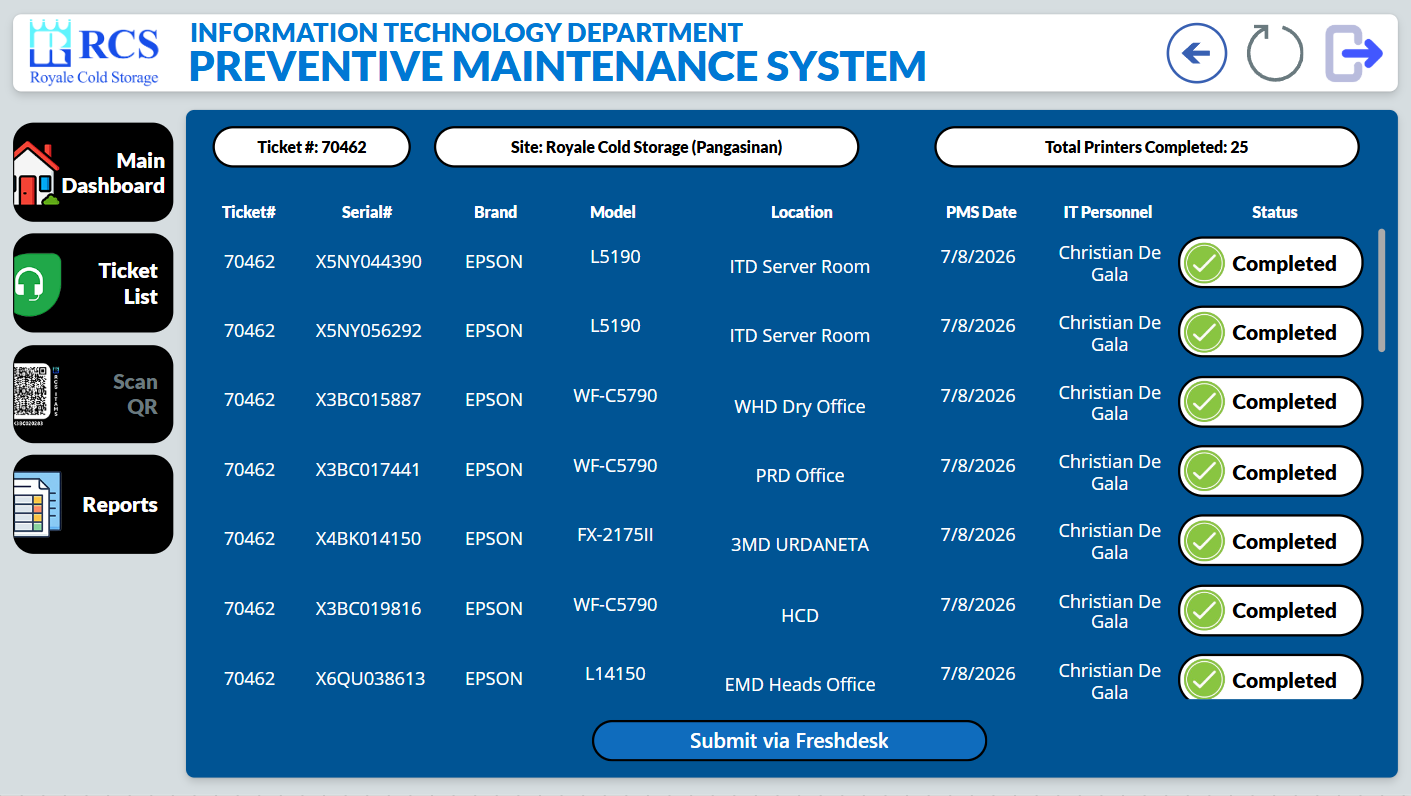
- After you've done conducting PMS on all the Printers of the specific RCS Site, the "View Summary Report" will appear. Click on that button to be able to view the summary of all the Printers that you've conducted.
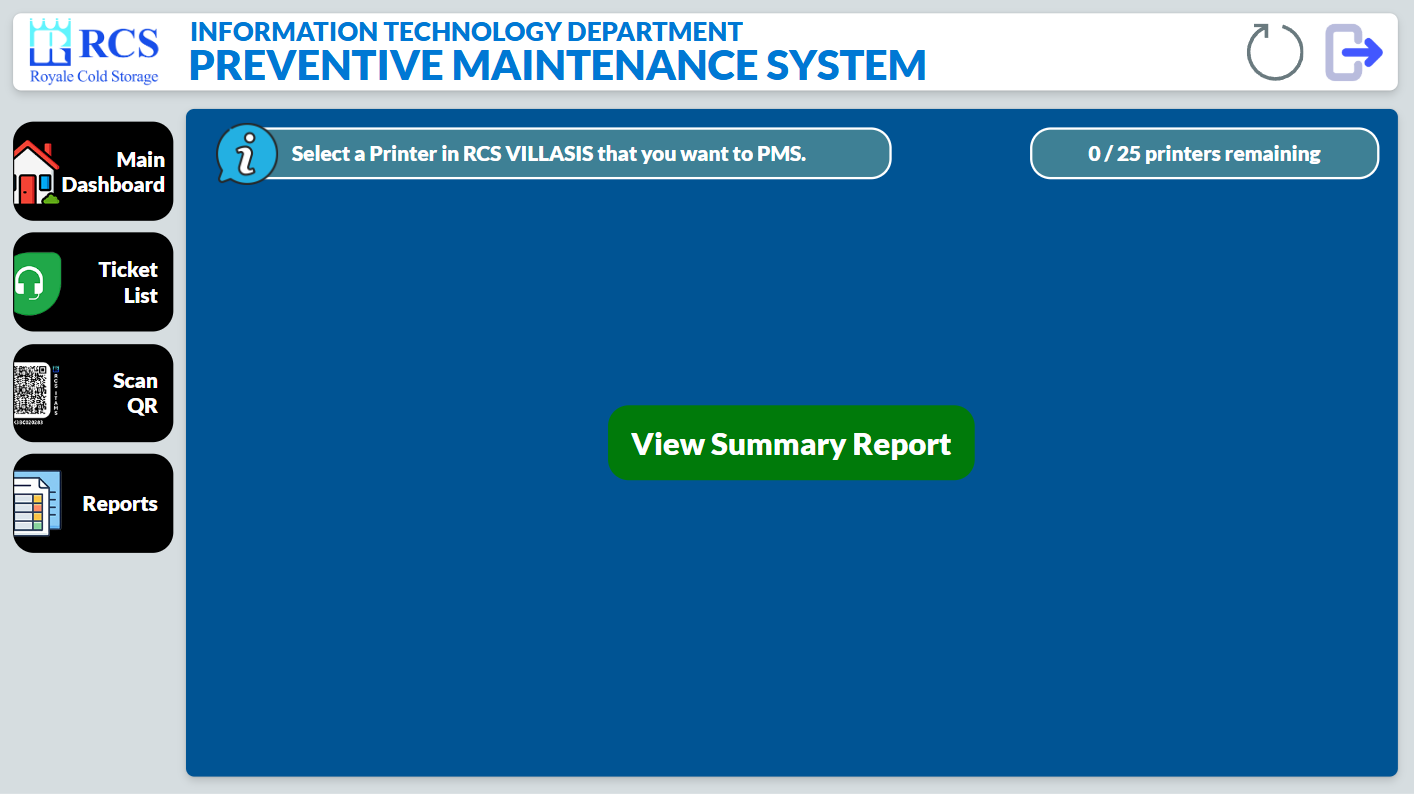
STEP 6:
- After viewing the summary of all the Printers that you've conducted PMS, click on "Submit via Freshdesk" button to start sending a complete summary report to all department heads of each department via email.
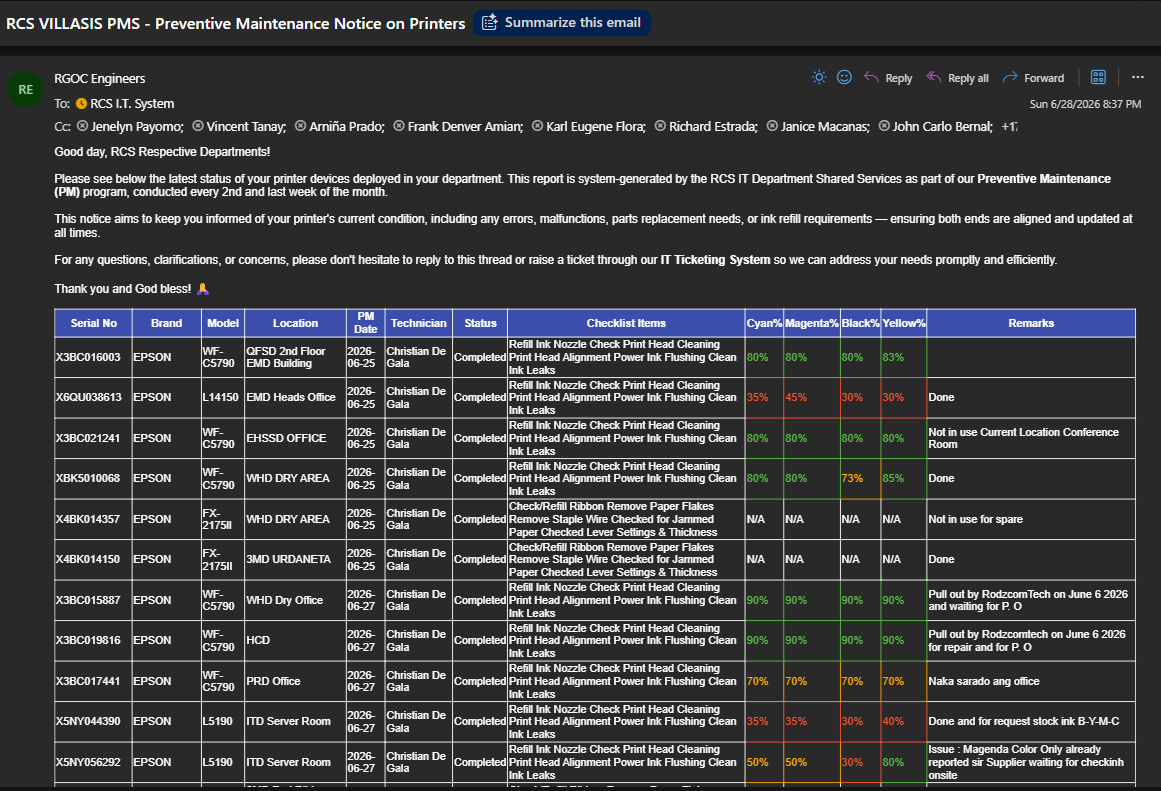
The System will generate a Complete Summary Report that will send thru Department Heads via E-mail.
Was this article helpful?
That’s Great!
Thank you for your feedback
Sorry! We couldn't be helpful
Thank you for your feedback
Feedback sent
We appreciate your effort and will try to fix the article