Welcome to the Online Asset Transfer System.
For starters, kindly copy and paste this link into your address bar: https://apps.powerapps.com/play/e/default-47f6ac20-79ba-49c5-b2ed-a99ea1da024d/a/32685933-ca21-409d-a59a-5edc6c0a5070?tenantId=47f6ac20-79ba-49c5-b2ed-a99ea1da024d&hint=99513483-148d-4480-95b6-0077fbafec73&sourcetime=1776735791753
Here is a step-by-step guide on how to use the system.
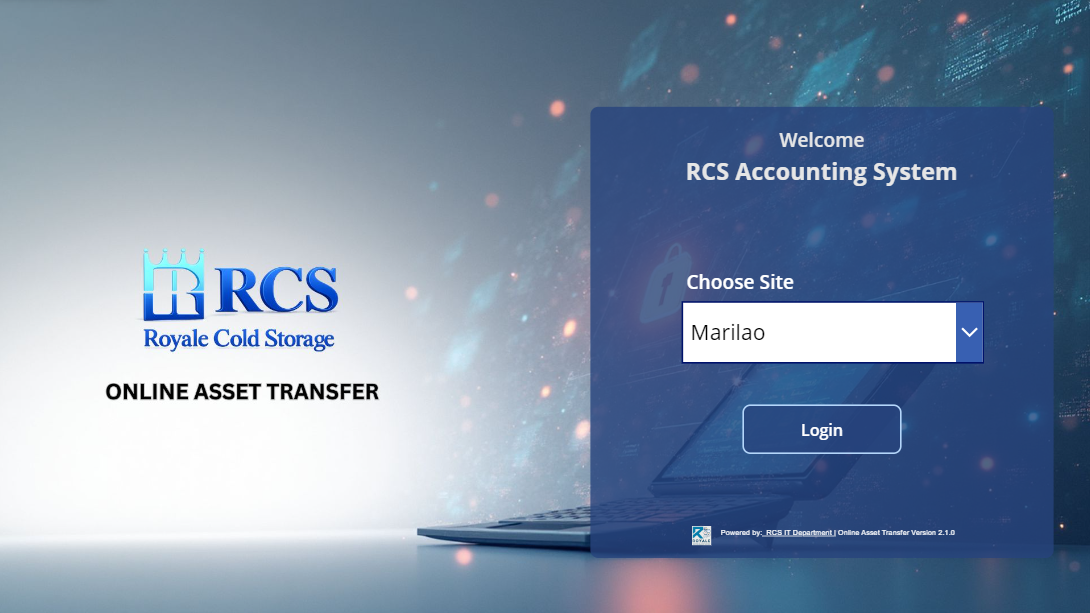
Step 1: SELECT SITE – Select the RCS site, then press the LOGIN button.
After you've successfully login your account, you will lead to this form. In this form you will see all of your current assets.
In order to make a transfer, kindly choose what asset you need transfer or find it via FA CODE/User Account on the search bar at the upper left of the form.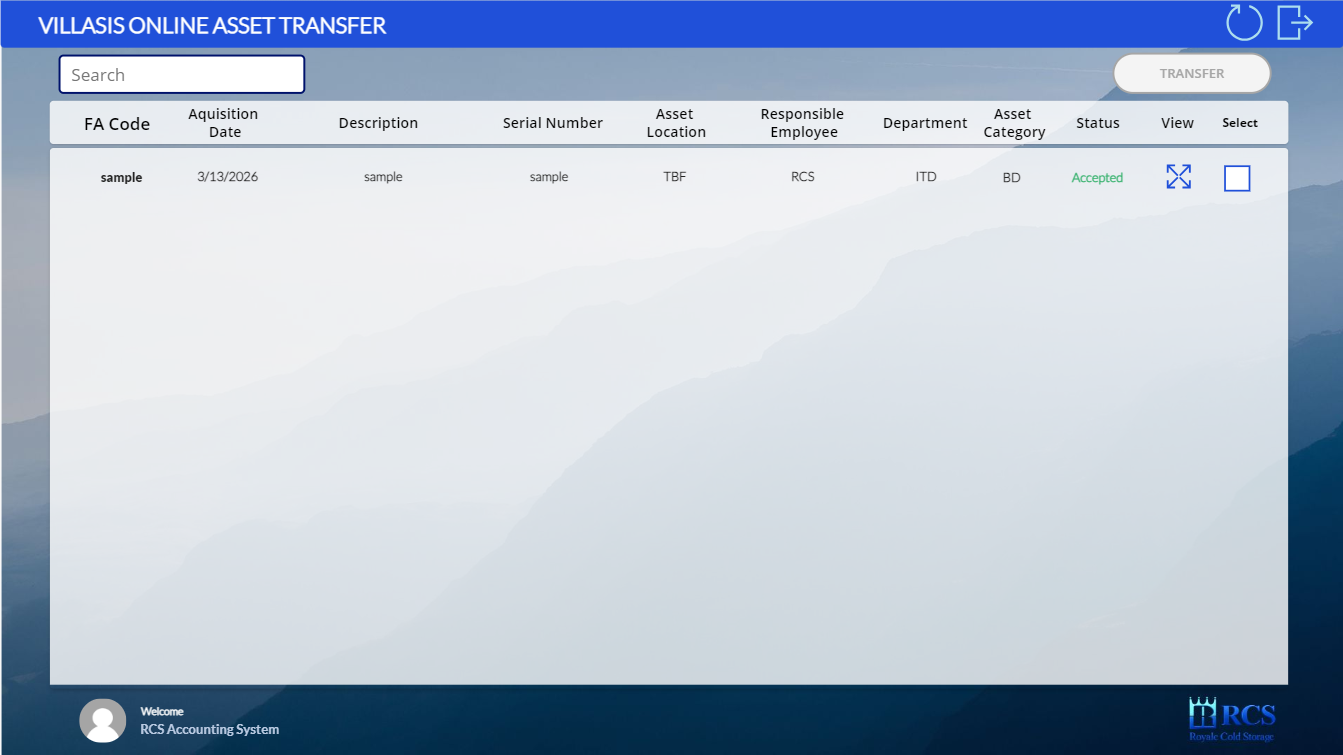
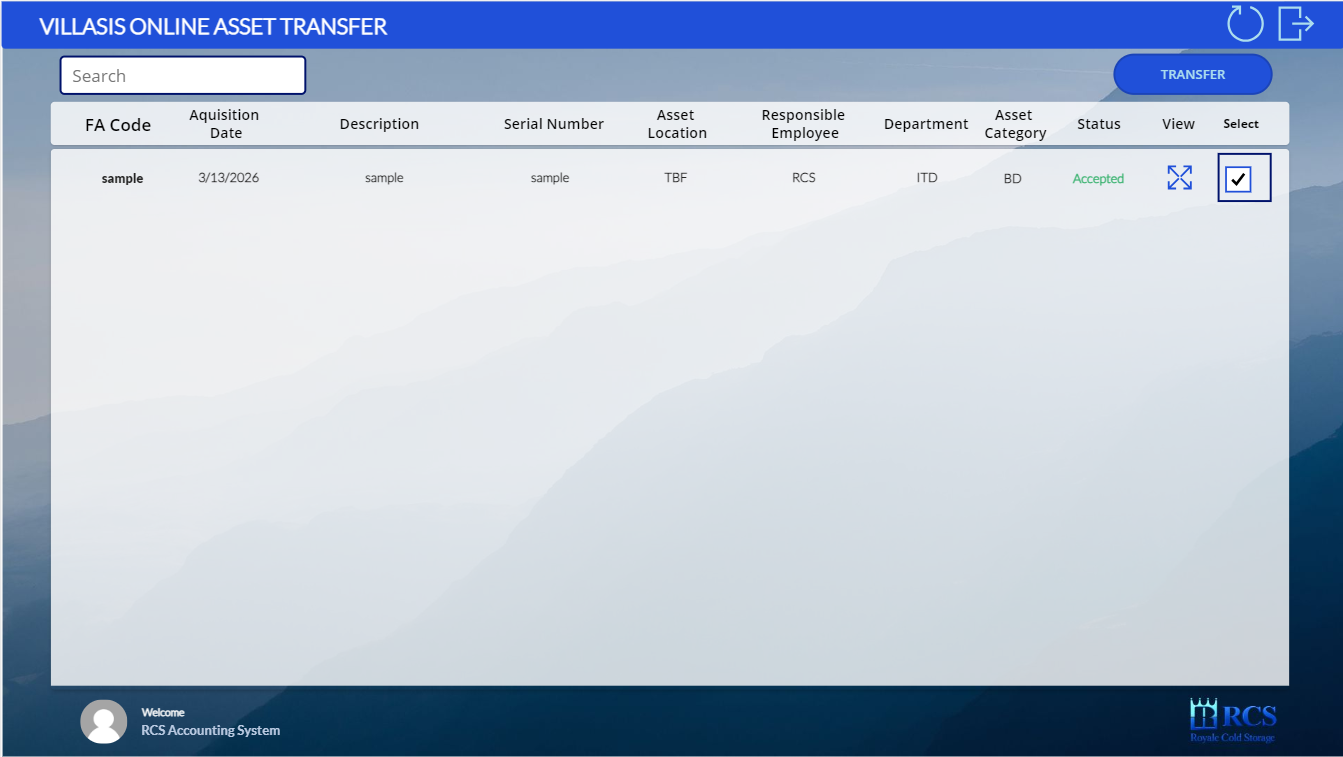
Step 2: After you have chosen or found the asset you will be transferring, kindly check the checkbox on the right side. (Note: You can only select an asset if its status is “Accepted.”) Then, click the TRANSFER button.
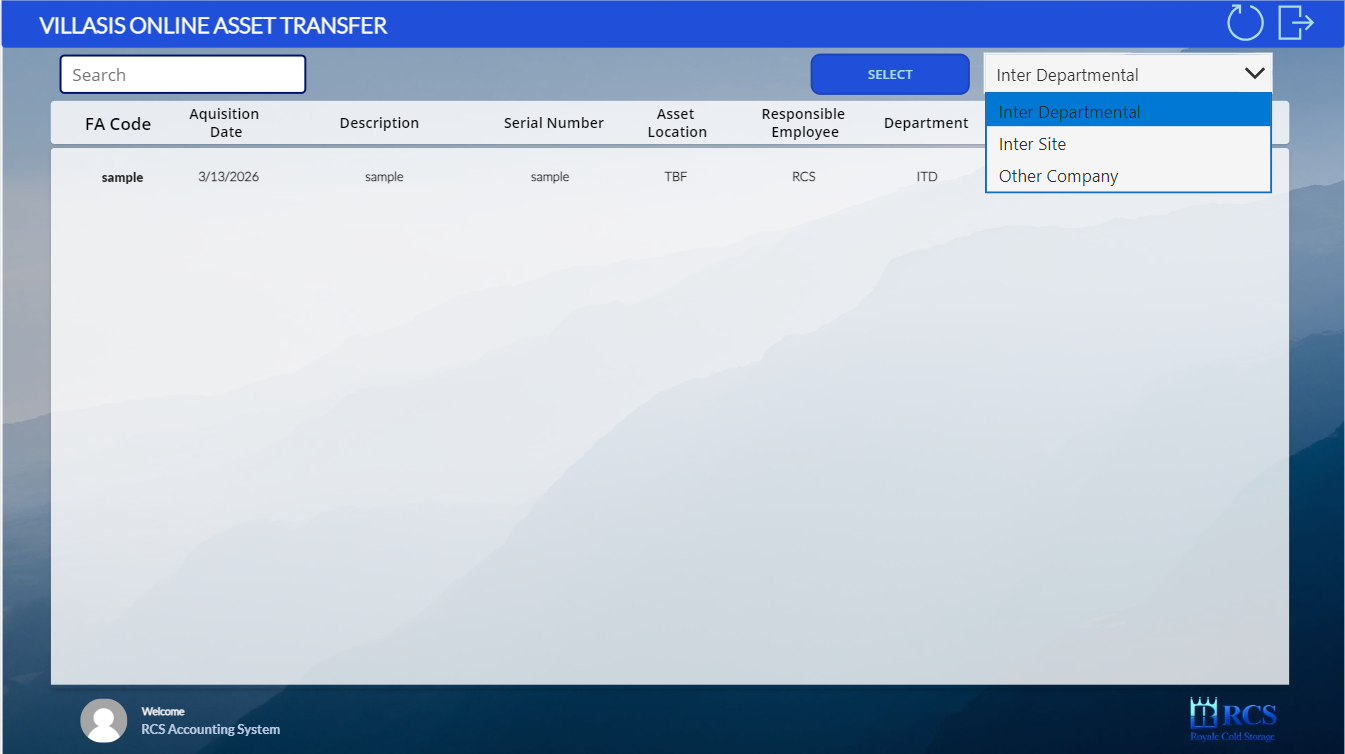
Step 3: After clicking the TRANSFER button, select the appropriate transfer type:
INTER-DEPARTMENTAL TRANSFER: For moving assets between departments at the same site.
INTER-SITE TRANSFER: For moving assets from one site to another.
OTHER COMPANY TRANSFER: For moving assets between different companies (e.g., from RCSI to RCSNI).
Step 4.a: INTER DEPARTMENTAL TRANSFER - Fill-up the details needed
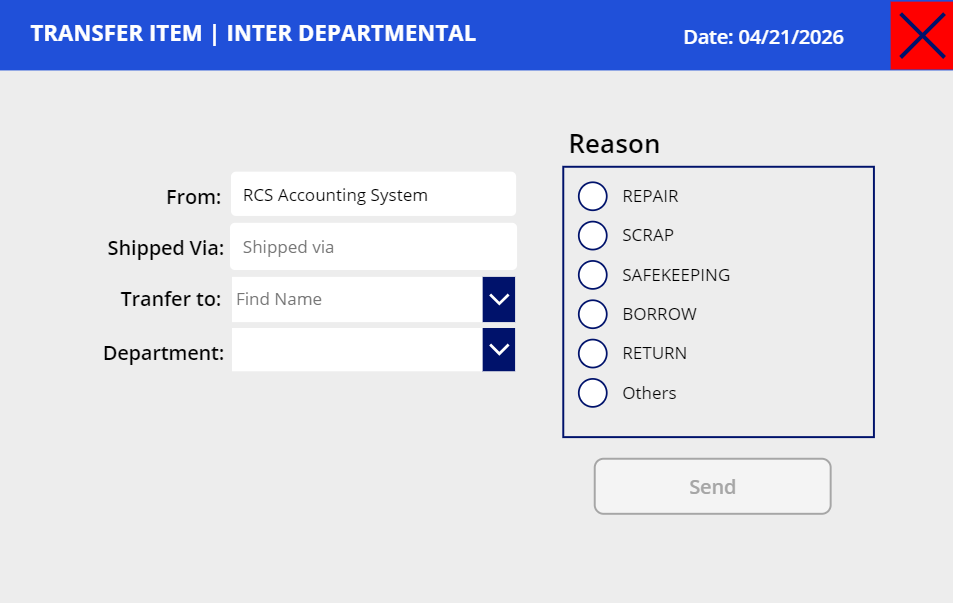
After you've been completed to fill-up the form. Press SEND
Step 4.b: INTER SITE TRANSFER - Fill-up the details needed
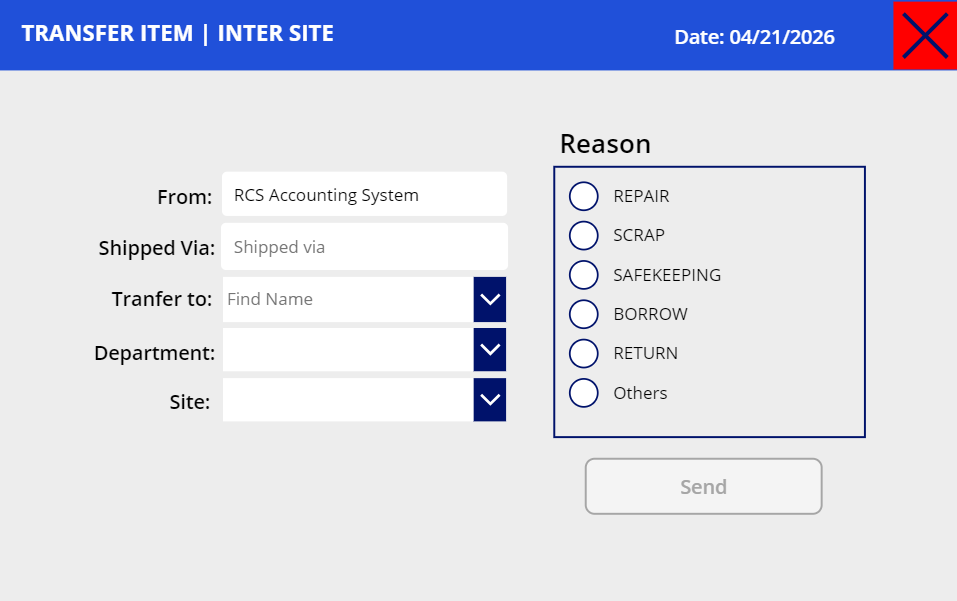
After you've been completed to fill-up the form. Press SEND
Step 4.c: OTHER COMPANY TRANSFER - Fill-up the details needed
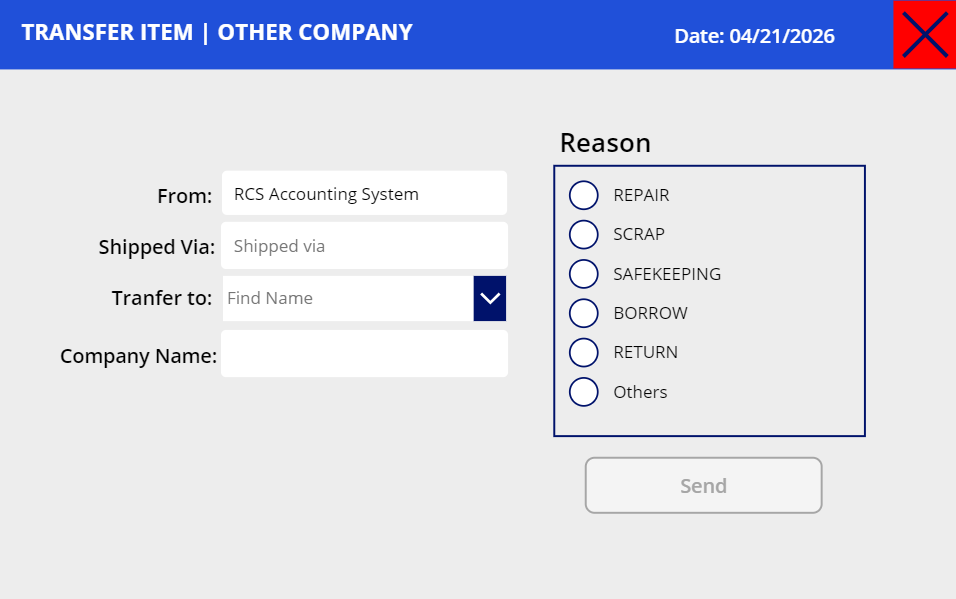
After you've been completed to fill-up the form. Press SEND
Once you already send the form, the asset status will change into Waiting for Asset Transfer Approval.
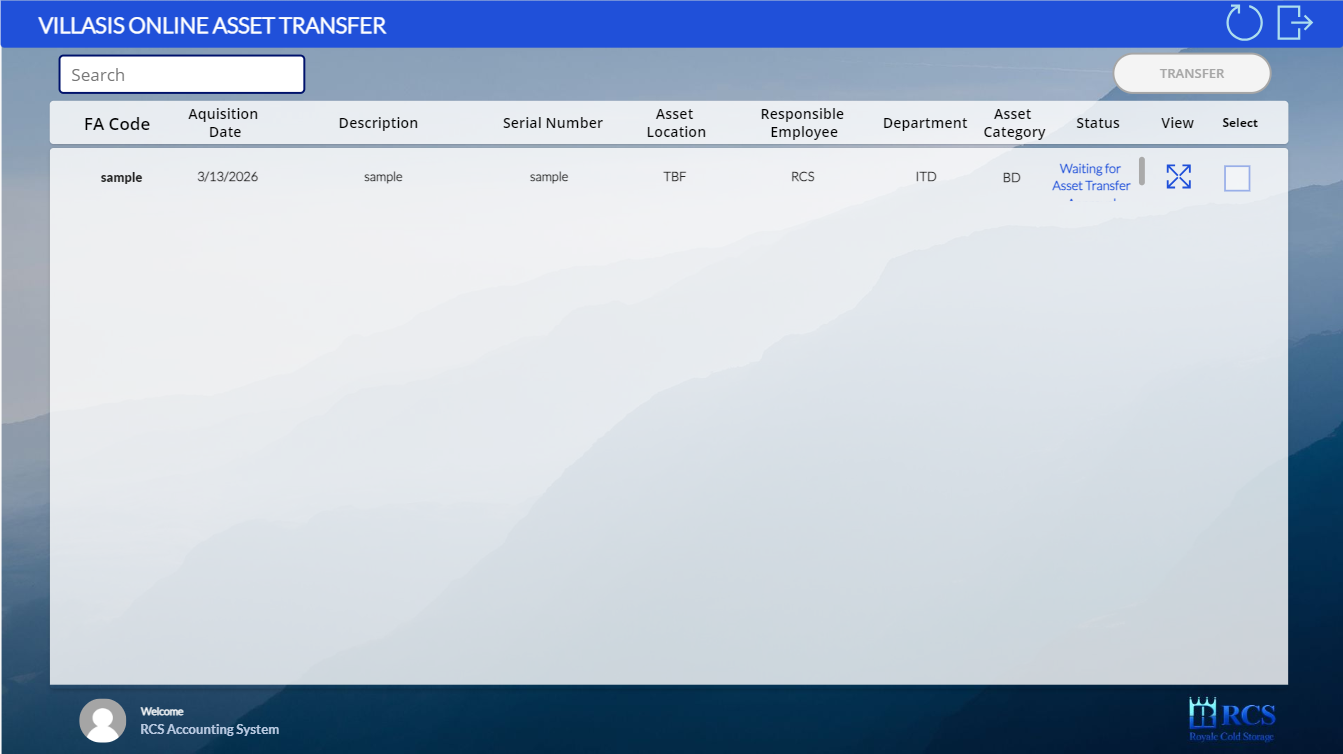
The asset to be transferred must be approved by FAD. The approver will receive an email regarding the pending asset transfer for approval.
Was this article helpful?
That’s Great!
Thank you for your feedback
Sorry! We couldn't be helpful
Thank you for your feedback
Feedback sent
We appreciate your effort and will try to fix the article