SHARE THE SPECIFIC ONEDRIVE FILE / FOLDER:
STEP 1:
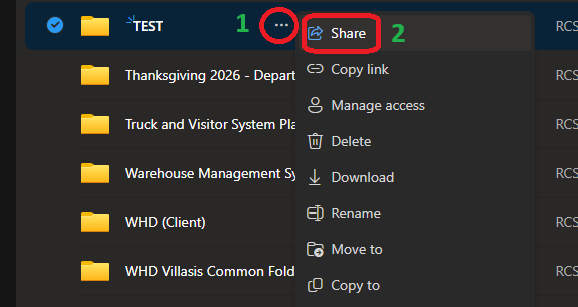
- Find the File / Folder that you want to share then Click on the Three Dots corresponds with the File / Folder then Click on Share to view the Sharing Options.
STEP 2:
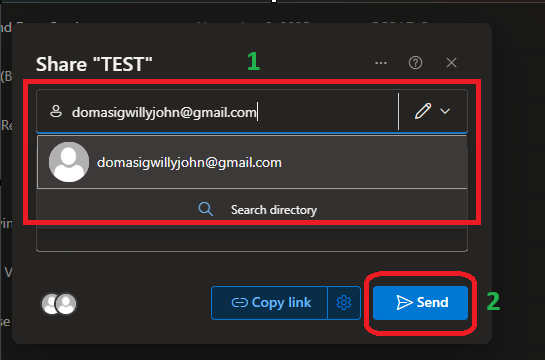
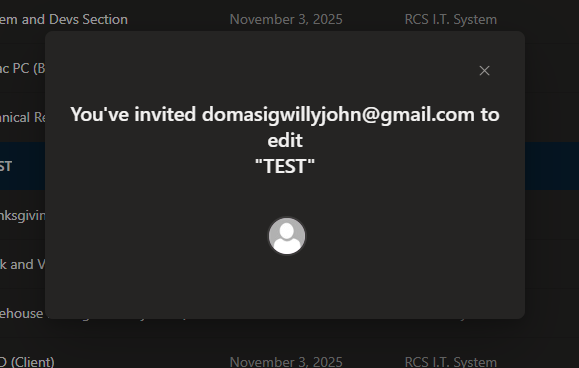
- Enter the e-mail address of the personnel that you want to share the File / Folder, then Click the Send button to send the invitation link to the designated e-mail address.
Note:
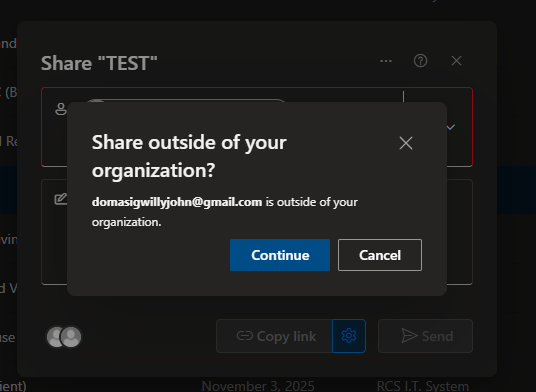
- If the entered e-mail address is not on our organization, this confirmation will pop-out. Click on the Continue button to proceed on sharing the said File / Folder.
ACCESS THE SPECIFIC FILE / FOLDER:
STEP 1:
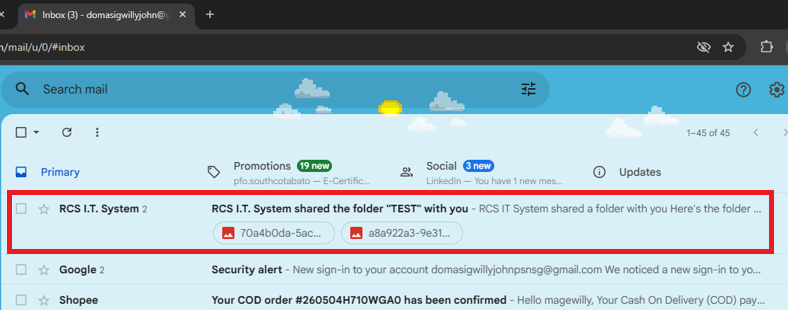
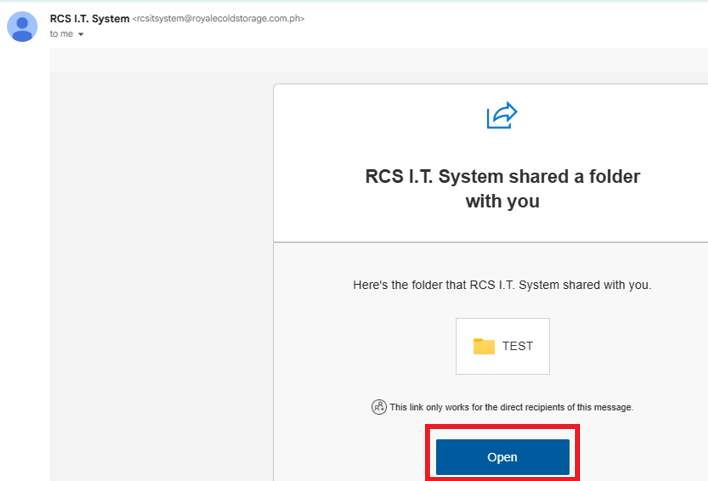
- Go to the e-mail account where the File / Folder is shared then Click on the e-mail you've received by the sharer to open the invite link provided in the e-mail.
STEP 2:
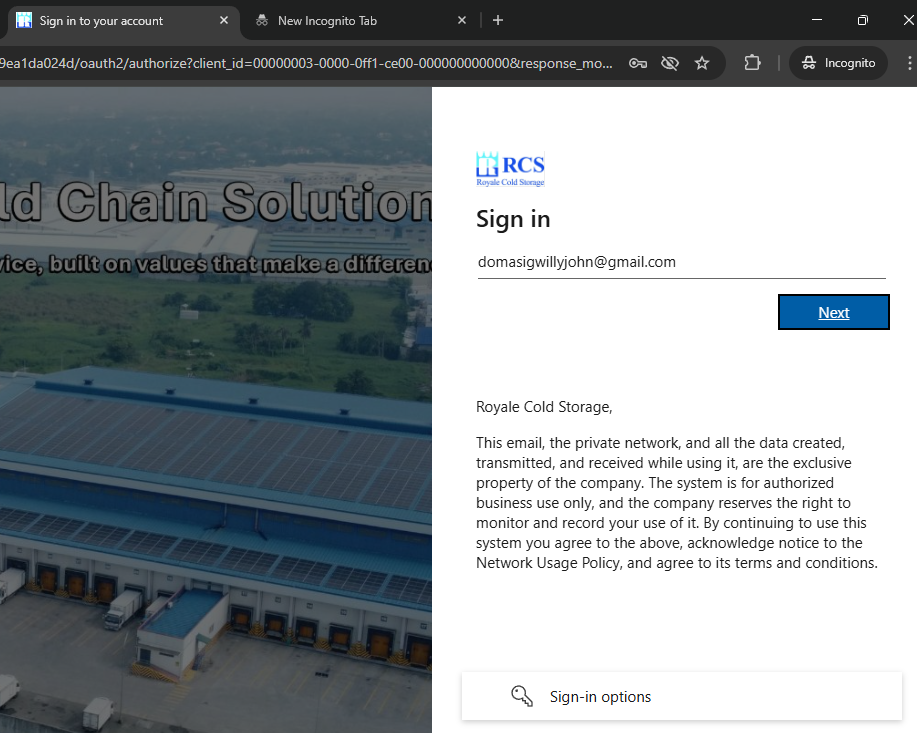
- Upon clicking the link, a sign-in window will appear. Enter the e-mail address that is used on the shared OneDrive link, then Click the Next button.
STEP 3:
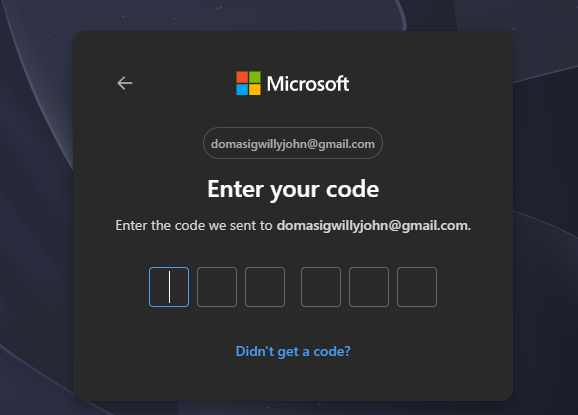
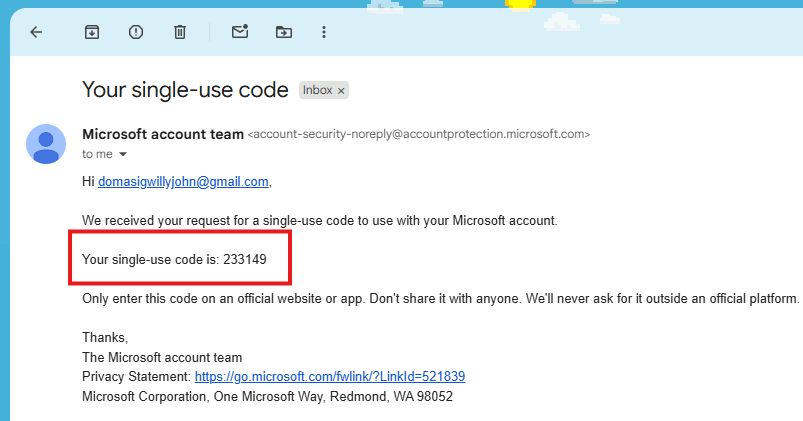
- Enter the 6-digit code that is sent to your e-mail account to proceed with the sign in process.
Note:
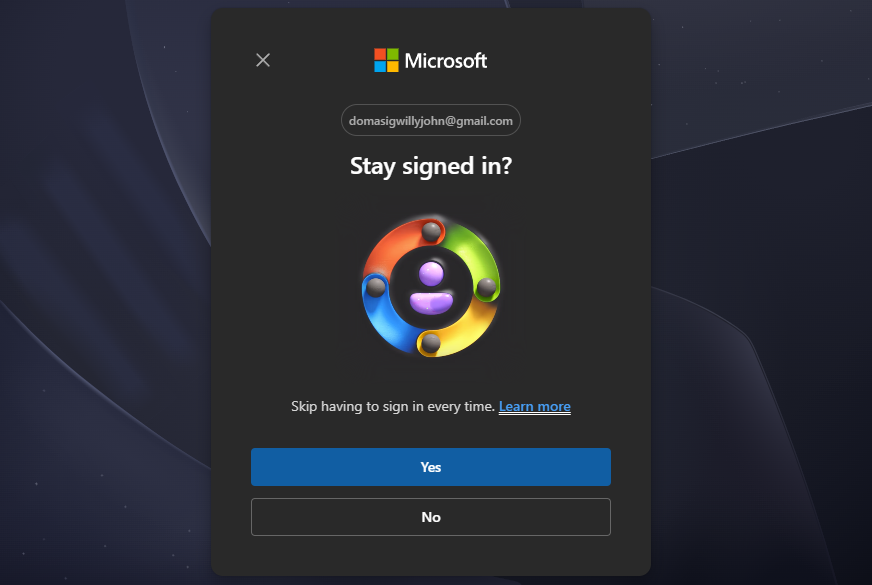
- Select Yes on this prompt if you want to stay sign-in on the computer you've used or Select No if you don't want to remember the sign-in on the computer.
STEP 4:
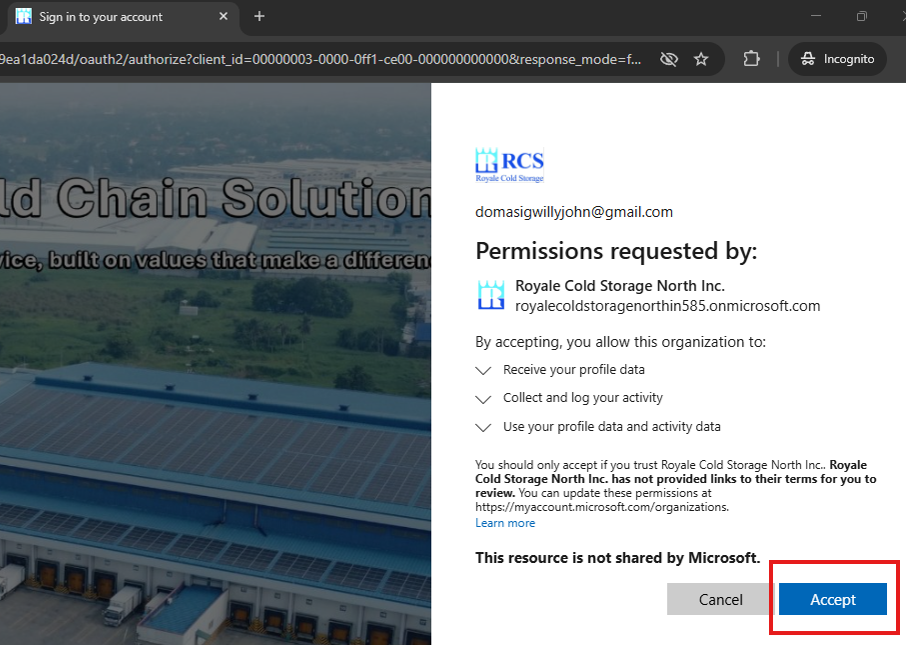
- Click on the Accept button to proceed on accessing the shared OneDrive File / Folder.
Note:
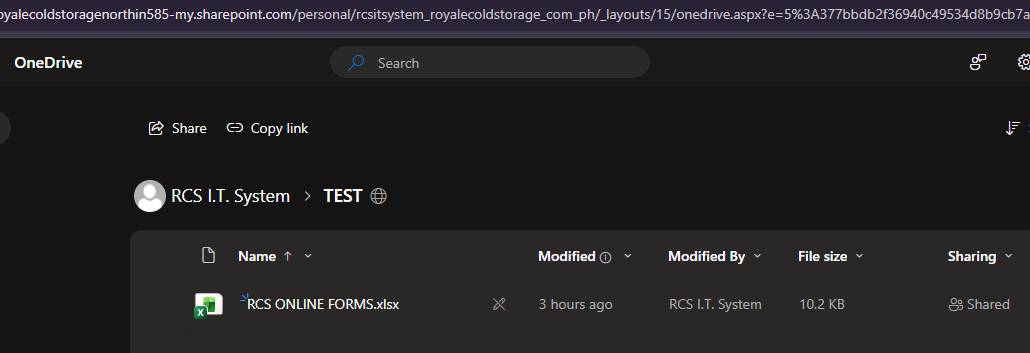
- If the account is successfully logged in before, the Permission prompt will be skipped and will redirect on the shared OneDrive File / Folder.
Was this article helpful?
That’s Great!
Thank you for your feedback
Sorry! We couldn't be helpful
Thank you for your feedback
Feedback sent
We appreciate your effort and will try to fix the article